
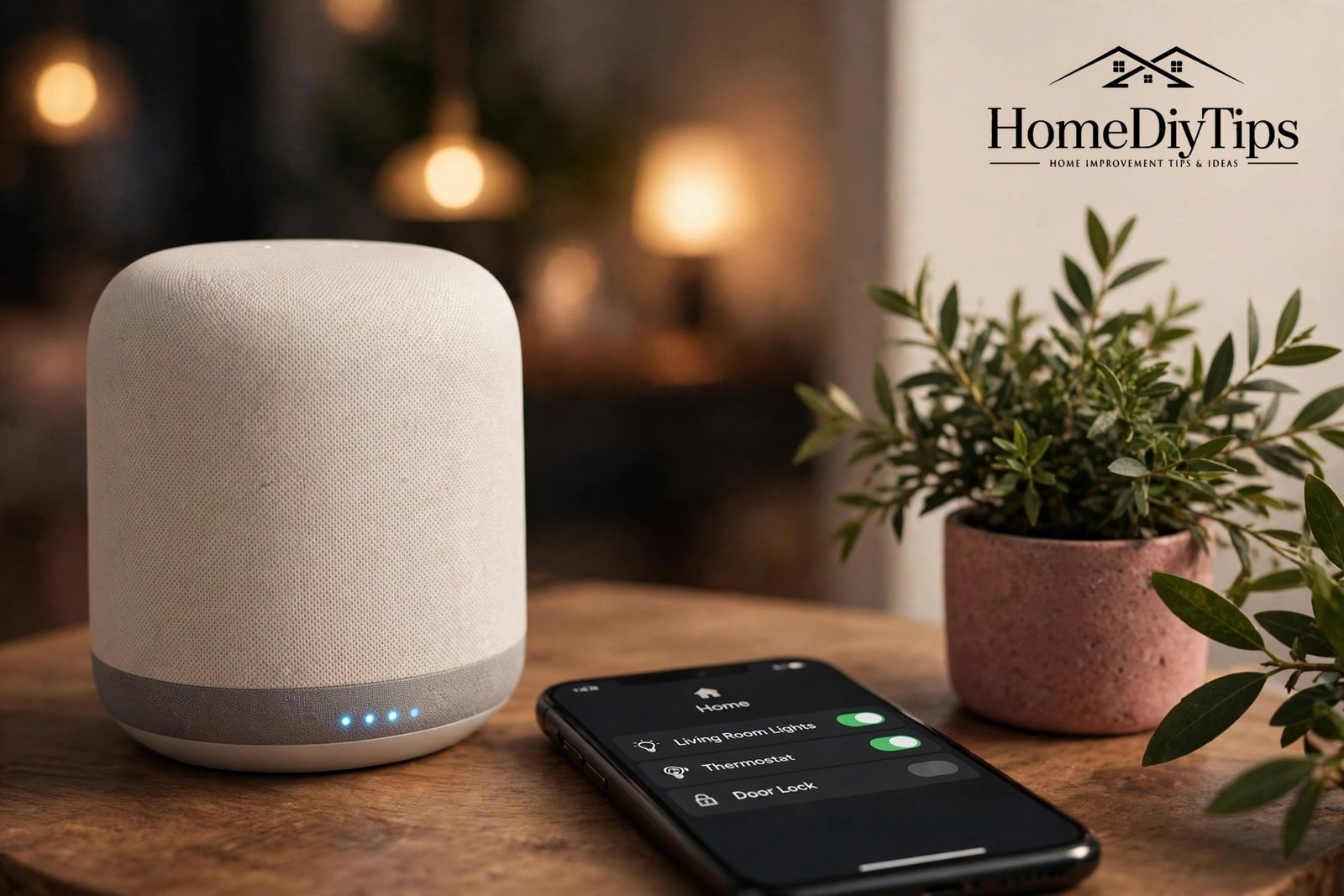
Setting up a smart home sounds technical, but in practice it is mostly about good planning and a few simple choices. A smart home is simply a home where everyday devices — lights, locks, thermostats, speakers and cameras — connect to your Wi-Fi and respond to your phone or your voice. You do not need to buy everything at once, and you certainly do not need to rewire your house.
The secret to a setup that actually works is to start with the foundation and build up slowly. A strong Wi-Fi signal, one voice assistant family and devices that speak the same language will save you from the frustration of gadgets that refuse to talk to each other. This checklist walks you through the whole process, from the first planning notes to the day your lights switch themselves off at bedtime.
Step 1: Decide What You Want Your Smart Home to Do
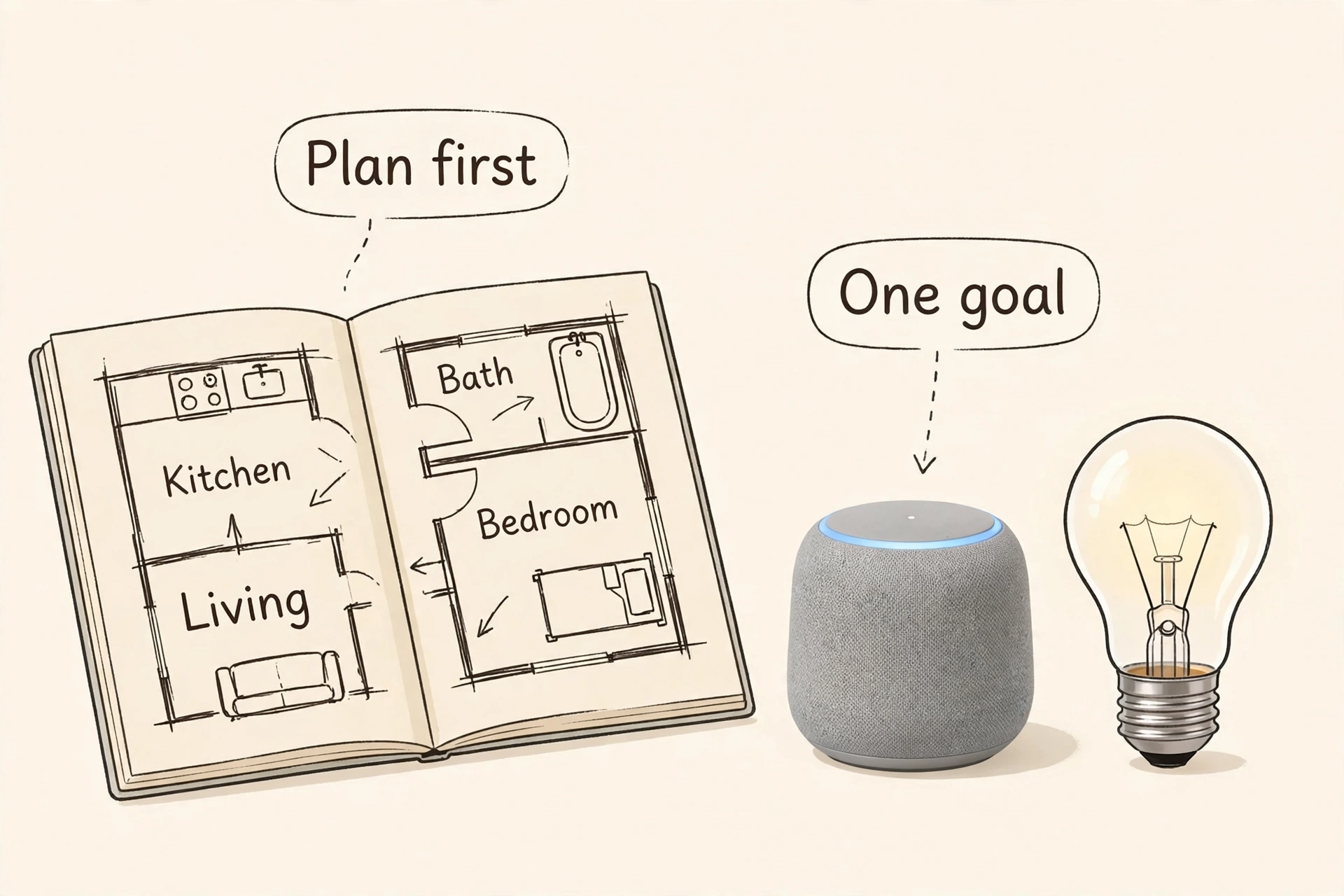
Before you buy a single device, spend ten minutes thinking about the problems you actually want to solve. Do you forget to lock the door? Do you want lights that turn on before you get home? Are your energy bills creeping up? Are you away from home often and want to keep an eye on things? Your answers decide what to buy first.
Most beginners find it helps to pick one clear goal for the first month. For example, comfort might mean smart bulbs and a thermostat. Security might mean a video doorbell and a smart lock. Convenience might mean voice-controlled speakers and plugs. One goal keeps the budget sensible and the learning curve gentle.
Step 2: Check and Strengthen Your Wi-Fi
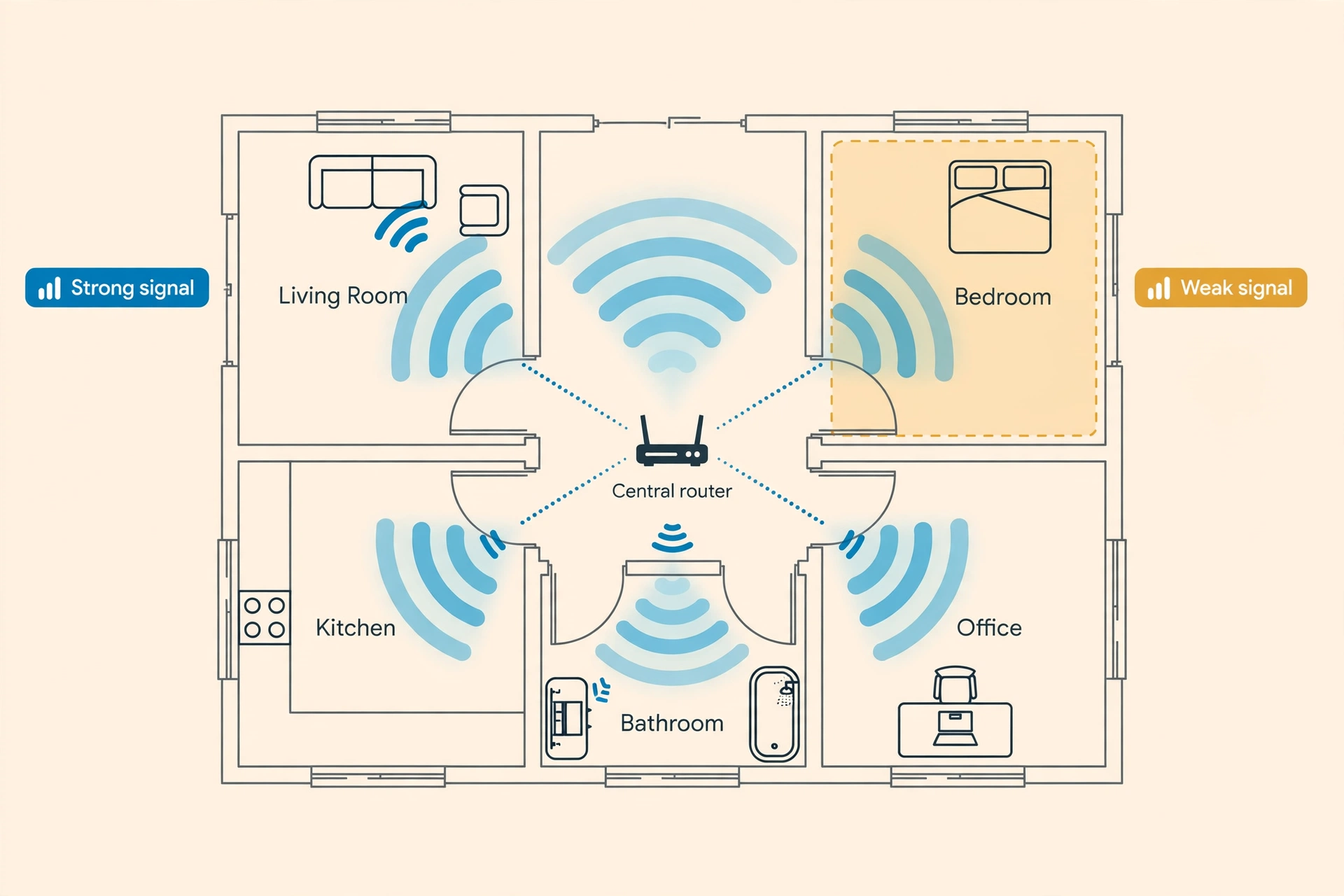
Every smart device depends on your Wi-Fi, so this step comes before any shopping. Smart bulbs, plugs and cameras all need a stable connection, and a weak signal in a far bedroom or garden room will make even the best device unreliable. Run a quick speed test in each room where you plan to place a device, using your phone.
If some rooms show a weak signal, fix that first. The simplest fix is moving your router to a central, open spot, away from thick walls, metal appliances and the floor. If that is not enough, a mesh Wi-Fi system or a good range extender can spread the signal evenly through the house. Many smart home headaches are really Wi-Fi headaches in disguise.
- Router position: Place it centrally, at waist height or above, and out in the open rather than inside a cupboard.
- Band choice: Most smart gadgets use the 2.4 GHz band because it travels further through walls; keep that band switched on.
- Password ready: Have your Wi-Fi name and password to hand before you start adding devices, since every setup asks for them.
Step 3: Pick One Voice Assistant and Stick With It
The three big voice assistants are Amazon Alexa, Google Assistant and Apple HomeKit with Siri. Each one works well, but mixing them usually causes confusion, because devices set up for one assistant do not always work smoothly with another. Pick the one that fits the phones and speakers you already own.
Once you have chosen, check that every device you buy says it works with your assistant before you order it. That single check prevents most compatibility problems.
Choosing Your First Smart Speaker or Display
Start with one speaker in the room you use most, usually the living room or kitchen. You can add more later, and most assistants let speakers work together as a group, so music can follow you from room to room.
Placement matters for sound as well as for looks. A clear shelf at roughly ear height, away from corners and clutter, gives the speaker its best chance to hear you clearly. If your main room needs a small refresh before the speaker moves in, our guide to living room decor ideas that actually work shows simple changes that make a room feel calmer and more organised.
Keep the speaker away from the television speaker, or it may mishear commands during a loud film.
Step 4: Setting Up a Smart Home Hub — Do You Need One?
Setting up a smart home does not always require a separate hub. Many Wi-Fi devices connect straight to your router and your assistant, and for a small setup that is perfectly fine. However, a hub becomes useful when you add devices that use Zigbee or Z-Wave, two low-power wireless standards that many sensors, locks and switches rely on.
A hub acts as a translator, letting Zigbee and Z-Wave devices talk to your Wi-Fi network and your voice assistant. Some smart speakers already contain a Zigbee hub inside, which is a neat shortcut. If you plan to add lots of sensors, door contacts or battery-powered gadgets, a hub keeps everything organised in one app instead of ten.
Step 5: Start With Lights, Plugs and One Thermostat
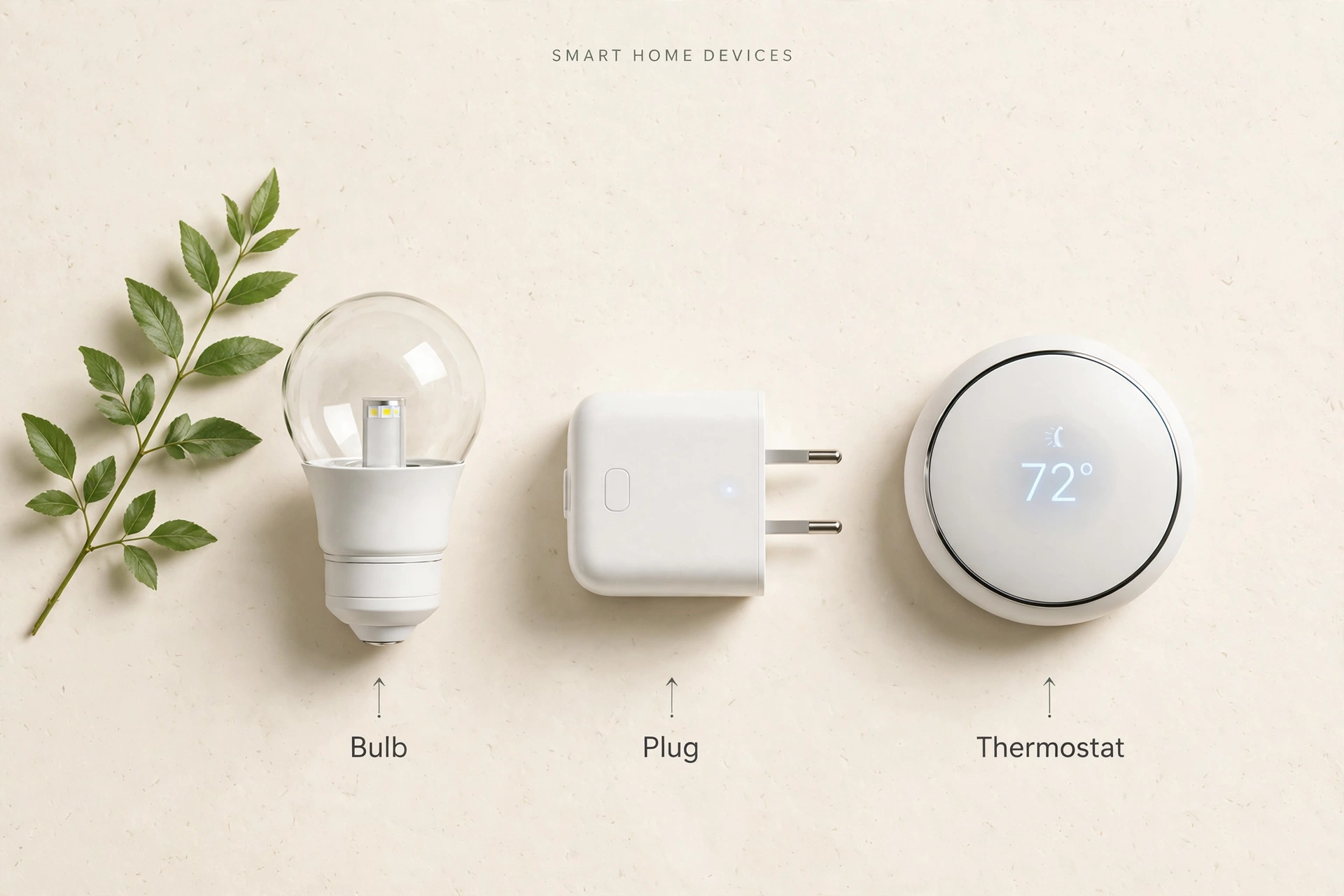
Smart bulbs are the friendliest first purchase. They screw into your existing lamps, connect to your Wi-Fi, and let you dim lights, change colour or set schedules from your phone. Start with the rooms you use most in the evening, such as the living room and bedroom, rather than buying bulbs for the whole house on day one.
Smart plugs are the second easy win. They turn any ordinary lamp, fan or coffee maker into a device you can switch on and off by voice or schedule. They are also cheap, so they are a low-risk way to learn how your smart home app works. A plug on a bedside lamp or a hallway light is often the moment a smart home starts to feel genuinely useful.
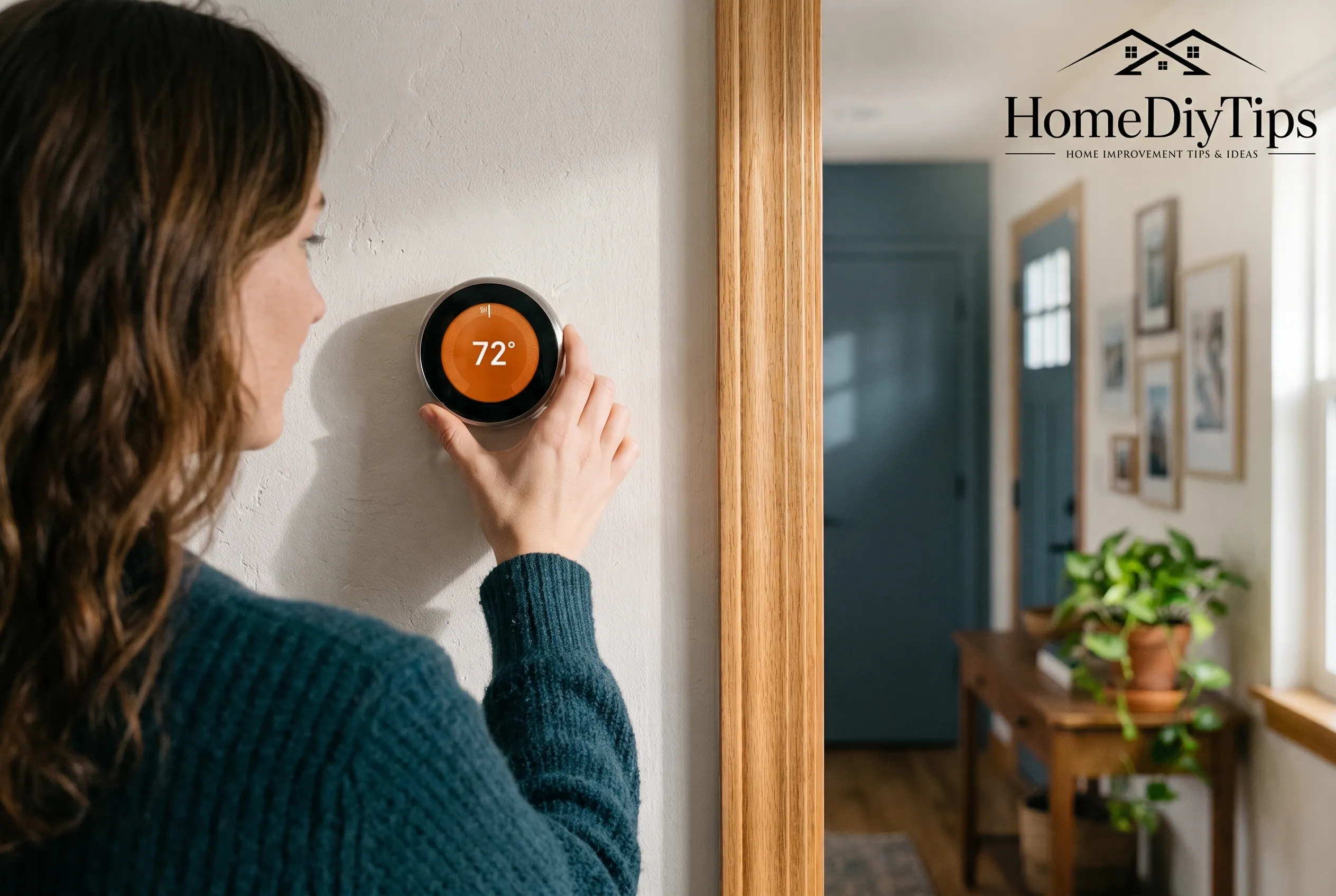
A smart thermostat is a slightly bigger step, but it pays for itself over time. It learns your routine, turns the heating down when nobody is home, and warms the house before you return. Check that it suits your heating system before buying, especially if you have an older boiler or underfloor heating.
A thermostat that cuts wasted heating is also a genuinely greener choice for the home, and it pairs well with other low-waste swaps around the house. For practical ideas that do not cost the earth, read our guide to the best eco-friendly products for the home, which covers simple changes room by room.
How to Set Up Smart Bulbs Without Rewiring
Smart bulbs need no electrician and no new wiring. Screw the bulb in, open the maker’s app, and follow the on-screen steps to connect it to your Wi-Fi. Then link the app to your voice assistant so you can control the bulb by voice. If a bulb will not connect, move it closer to the router for setup, then move it back once it is paired.
One practical tip: a smart bulb only works when its wall switch stays on. If someone switches it off at the wall, the bulb loses power and cannot respond. Many families solve this with a small note by the switch, a switch guard, or by replacing the switch with a smart switch later on.
Step 6: Add Security — Locks, Doorbells and Cameras
Security devices are where a smart home earns real peace of mind. A video doorbell shows you who is at the door, even when you are away, and lets you speak to visitors through your phone. A smart lock lets you lock up from bed, share a temporary code with a guest, and check the door is locked from anywhere.
Placing Cameras Sensibly
Indoor and outdoor cameras add another layer, but they need sensible placement. Cover entry points like the front door, back door and driveway, and keep cameras out of private spaces such as bedrooms and bathrooms. Check the camera’s storage options too: some need a monthly plan for video history, while others store clips on a memory card at no extra cost.
Good security starts with good habits as well as gadgets. A tidy, well-lit entrance and a locked gate do as much as any camera. If your entrance area needs a refresh before you mount a doorbell, our guide to easy DIY home decor projects for every room includes simple entrance upgrades that make the whole front of the house feel more welcoming.
Step 7: Build Routines and Automations
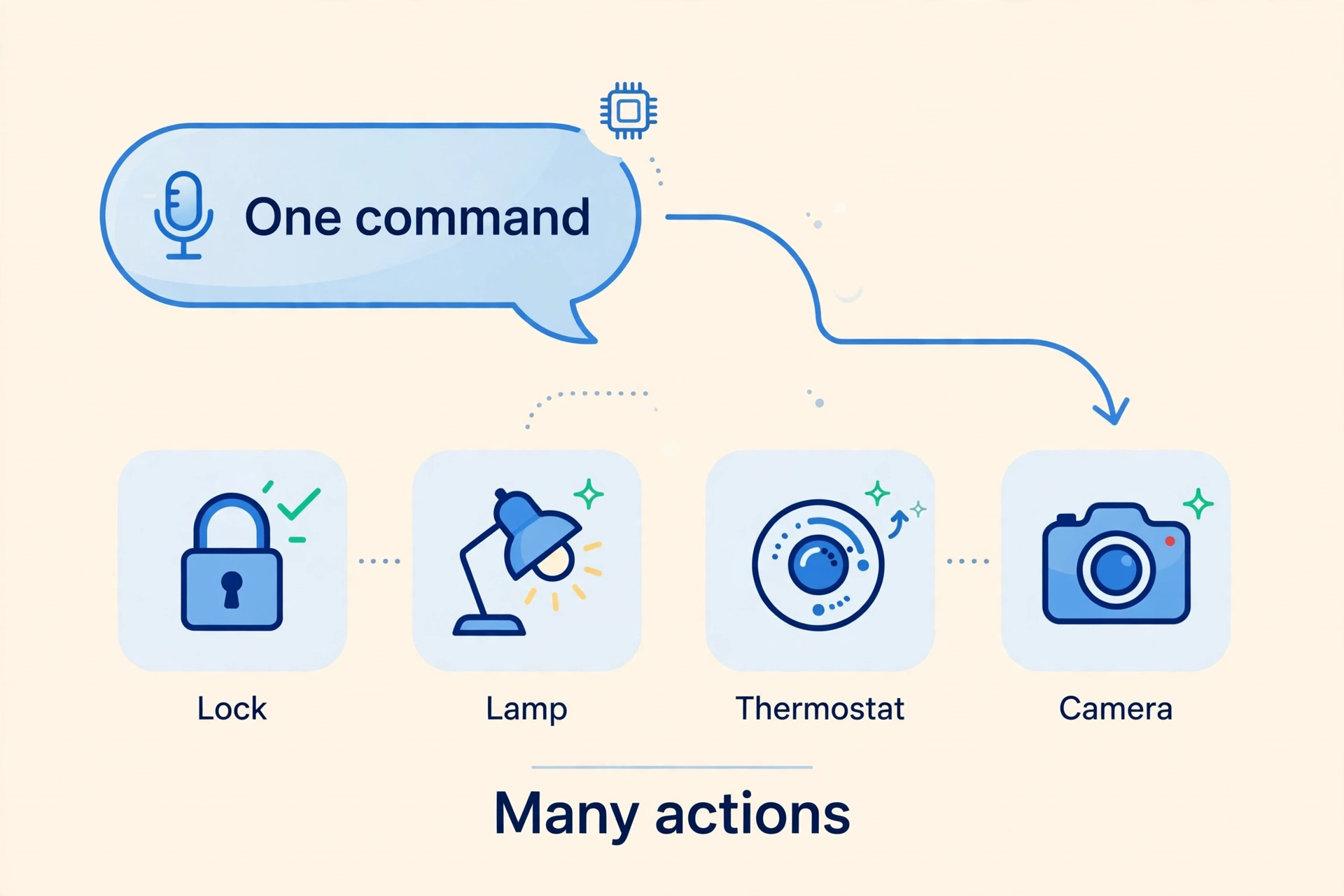
Routines are where a collection of gadgets becomes a true smart home. A routine is a single command or trigger that runs several actions at once. For example, a “Good night” routine might lock the doors, switch off all the lights, lower the thermostat and arm the cameras. A “Good morning” routine might open the blinds, switch on the kitchen lights and read the weather.
- Pick the trigger: A voice phrase, a time of day, or leaving and arriving home are the simplest triggers.
- List the actions: Write down every device action you want, in the order it should happen.
- Test it twice: Run the routine manually first, fix anything that fails, then let it run automatically.
- Keep it simple: If a routine has more than six or seven actions, split it into two smaller routines.
- Review monthly: Habits change with the seasons, so revisit timings when the clocks change or your schedule shifts.
Step 8: Keep Your Smart Home Safe and Maintained
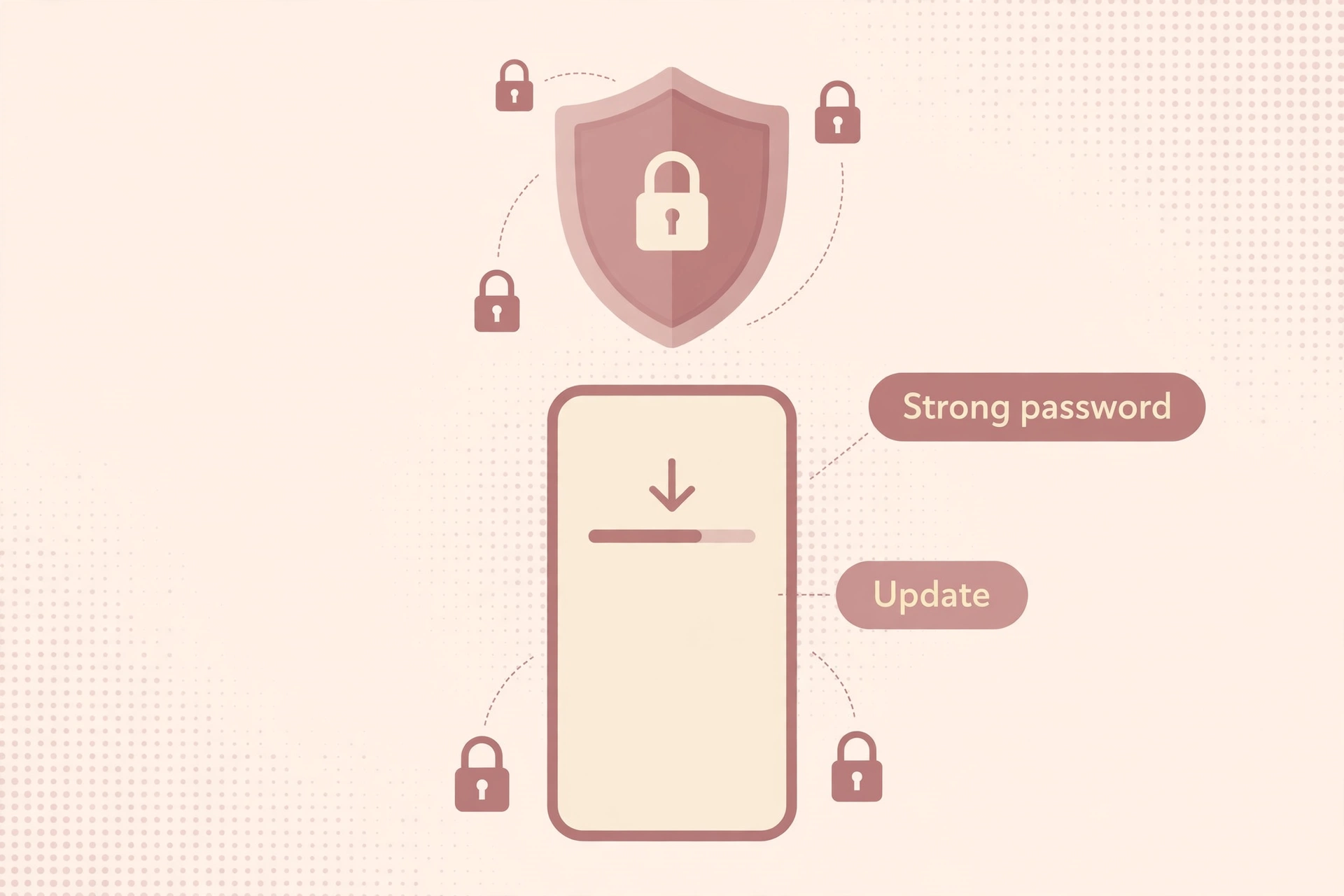
A smart home needs the same care as any other part of the house. Use a strong, unique password for your smart home accounts, turn on two-factor authentication where it is offered, and keep your devices’ software updated. Updates often fix security problems, so do not ignore them for months.
Reviewing Access Once a Season
Maintenance is mostly small jobs. Replace camera batteries or check wired connections, dust sensors, test your doorbell chime, and review which people still have access to your lock codes. Once a season, walk through your device list in the app and remove anything you no longer use. A tidy device list is much easier to troubleshoot than a cluttered one.
Keeping the house itself in good order helps the gadgets work better too. Dusty sensors, cluttered shelves and grimy lenses all cause false alerts and missed triggers. A regular tidy-up, like the system in our guide on how to clean your house fast, room by room, keeps both your home and your smart devices running smoothly.
| Checklist Stage | What to Do | Done When |
|---|---|---|
| Plan | Choose one goal and list the rooms that need help | You have a short written list, not a shopping basket |
| Wi-Fi | Test signal in every planned room, fix weak spots | Every room shows a stable connection |
| Assistant | Pick one assistant and buy one speaker | You can control the speaker by voice |
| First devices | Add lights, plugs and a thermostat | Three devices work from phone and voice |
| Security | Add a doorbell, lock or camera | You can check the door from your phone |
| Routines | Build morning, leaving and bedtime routines | They run without errors for a full week |
| Upkeep | Update software, review access, tidy the device list | Done once a season, every season |
Frequently Asked Questions
How much does setting up a smart home cost?
You can start for the price of one smart speaker and two smart bulbs, which is often less than a family takeaway. A comfortable starter setup with a speaker, a few bulbs, two plugs and a video doorbell usually costs far less than people expect. The mistake is buying everything at once; build slowly and the cost spreads itself out.
Do smart home devices work if the internet goes down?
Most Wi-Fi devices need the internet for voice control and remote access, so they will not respond to phone commands during an outage. However, many still work locally: wall switches still switch, bulbs still light from the switch, and locks still open with a code or key. A hub-based setup with Zigbee or Z-Wave devices often keeps working locally even without the internet.
Is a smart home safe from hackers?
No connected device is completely risk-free, but sensible habits reduce the risk a great deal. Use strong unique passwords, turn on two-factor authentication, keep software updated, and buy from well-known brands with a track record of security updates. Avoid cheap no-name cameras and plugs, which often lack proper security support.
Can I set up a smart home in a rented house?
Yes, and renters are some of the happiest smart home users. Smart bulbs, plugs, speakers and battery doorbells need no drilling or rewiring, and you can take them with you when you move. Just check your tenancy agreement before sticking anything to walls, and keep the original bulbs and fittings to restore at the end of your tenancy.
What should I buy first if I can only buy one thing?
Buy a smart speaker from the assistant family you plan to use. It is the control centre for everything else, it is useful on its own for music, timers, weather and questions, and it makes every later device easier to set up. Your second purchase should be a smart bulb or plug in the room you use most.
Making Your House a Smart Home: Room-by-Room Plan
[…] Related reading: How to Integrate Smart Technology into Your Home and Setting Up a Smart Home: The Complete Checklist […]