How to operate Nest thermostat helps you control your home’s heating and cooling, adjust the temperature, and manage comfort settings from the thermostat or a compatible phone app. Once you understand the controls, everyday tasks—such as turning on the air conditioning, changing the temperature, or setting a schedule—become much easier.
The first thing to know is that Nest thermostats do not all use the same controls or app setup. Some models have a rotating ring that you press to select options, while the standard Nest Thermostat uses a touch-sensitive side bar. App compatibility and available features also depend on the model.
This guide explains how to identify your thermostat, adjust its temperature, choose heating or cooling, use the app, manage schedules, and troubleshoot common problems.
Short Definition
To operate a Nest thermostat, use its rotating ring or side touch bar to adjust the temperature and select a heating or cooling mode. Compatible apps let you manage settings and
Experience
If your Nest thermostat keeps changing the temperature, check its schedule, Eco settings, and Home/Away automation before resetting it. Controls and app compatibility vary by model, so confirm which thermostat you have first.
Mission Statement
Home Topics Mission Statement: We help homeowners and renters make practical, stylish, and informed decisions that create more comfortable, functional living spaces.Schedules remotely.
How to Operate a Nest Thermostat: The Quick Answer
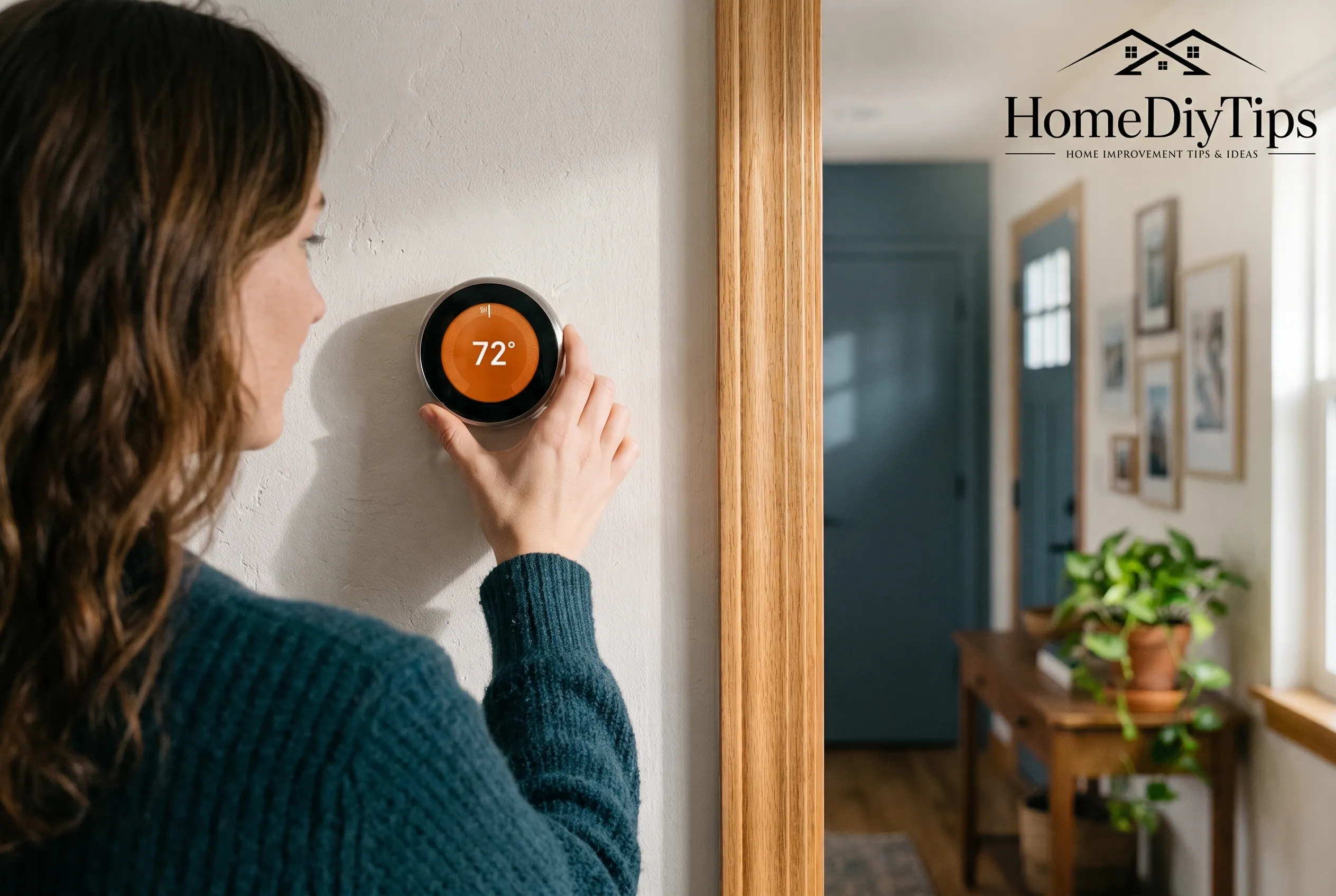
To operate most Nest thermostats, start at the device and use its physical controls to select the temperature or setting you want. On models with a rotating ring, turn the ring to move through options and press it to select. On the standard Nest Thermostat, swipe or tap the touch bar on the side.
For everyday use:
- Adjust the temperature: Use the thermostat’s controls to raise or lower the target temperature.
- Choose a mode: Select heating, cooling, or another available mode, depending on your model and HVAC system.
- Use your phone: Open the compatible Google Home or Nest app, if your model supports it, to change settings remotely.
- Manage the schedule: Review scheduled temperature changes if the thermostat adjusts itself at unexpected times.
- Check the result: Confirm that the target temperature and operating mode match what you intended.
If the instructions on your screen differ from those in this guide, check the model name first. A Learning Thermostat, Nest Thermostat E, and standard Nest Thermostat may have different controls and setup requirements.
How to Identify Your Nest Thermostat Model
Before changing settings, identify which Nest thermostat you have. This helps you follow the right instructions and find the correct manual.
Look for these common models:
- Nest Learning Thermostat (3rd generation or earlier): Usually has a round display and a rotating outer ring. Pressing the ring opens a menu.
- Nest Thermostat E: Also uses a rotating ring and a press-to-select menu. Its design is different from the standard Nest Thermostat.
- Nest Thermostat (2020): Uses a touch-sensitive bar on the right side rather than a rotating ring.
- Nest Learning Thermostat (4th generation): Uses a dial-style control and has model-specific menus and features.
These are general visual clues, not a substitute for checking the exact model. If you are unsure, open Google’s Beginner’s guide and compare your device with the models shown there.
You can also check the device information in the thermostat’s settings or its associated app. If you recently moved into a home with an installed Nest thermostat, the previous owner’s account or settings may still be connected. Follow Google’s guidance for transferring or resetting a pre-installed thermostat instead of assuming it is already configured for your account.
Why model identification matters: The correct app, menu layout, schedule controls, and available features can vary. Using instructions for another model may leave you searching for a button or setting that your thermostat does not have.
How to Operate Nest Thermostat Controls
Once you identify the model, learn its main physical controls. You can usually change the temperature directly at the thermostat without opening an app.
Models With a Rotating Ring
On many Nest Learning Thermostats and the Nest Thermostat E, the outer ring controls navigation.
- Press the ring inward. This opens the menu or Quick View screen.
- Turn the ring. Move through the available options or adjust the target temperature.
- Press the ring again. Select the highlighted option.
- Follow the on-screen prompts. Some settings require another selection or confirmation.
To make the room warmer, turn the ring toward a higher target temperature. To make it cooler, turn it toward a lower one. The display should show the target you selected.
If you open a menu by accident, look at the screen before selecting anything. You can usually return to the previous screen using the displayed navigation option.
Standard Nest Thermostat With a Touch Bar
The standard Nest Thermostat uses a touch-sensitive bar on its right side. It does not operate like a traditional touchscreen.
- Tap the touch bar to open the menu.
- Swipe up or down to move through options or change the temperature.
- Tap the bar to confirm your selection.
- Check the display to make sure the intended setting is active.
A swipe in the wrong direction may change the temperature more than you intended, so make small adjustments and check the displayed number.
The official Nest beginner’s guide explains the controls for these different models. If the menu on your device looks different, use the instructions for your exact model rather than trying to match every step.
How to Adjust a Nest Thermostat Manually
Manual temperature changes are useful when your home feels too warm or too cold and you want to make an immediate adjustment.
Follow these steps:
- Look at the temperature displayed on your thermostat.
- Use the ring or touch bar to raise or lower the target temperature.
- Stop when the desired target appears on the screen.
- Wait for the thermostat to respond. If your HVAC system is operating normally and the selected mode calls for heating or cooling, it may start running.
- Give the room time to approach the new target.
It is important to understand the difference between current temperature and target temperature.
- Current temperature: The temperature the thermostat currently measures.
- Target temperature: The temperature you want the system to maintain.
For example, if the room is 76°F and you set a cooling target of 72°F, the system may run to bring the room closer to 72°F. The room will not necessarily reach that temperature immediately.
The time required depends on your HVAC equipment, the weather, insulation, room size, and other conditions. A target temperature is not a promise that the room will reach it within a specific number of minutes.
Will a manual change last?
That depends on your model and settings. A manual adjustment may temporarily override a scheduled temperature, or the thermostat may return to a scheduled setting at the next event. Some models offer a temperature hold feature, but its availability and controls differ.
If you want a temperature to remain in place, check the options shown on your thermostat or in its app. Do not assume that changing the target temperature permanently changes the schedule.
How to Switch Between Heating, Cooling, and Off
Your Nest thermostat’s operating mode tells it what kind of temperature control to provide. The options you see depend on the equipment installed in your home.
Common modes include:
- Heat: The thermostat calls for heating when needed to reach the selected target.
- Cool: The thermostat calls for cooling when needed.
- Heat-Cool or Heat • Cool: Where supported, the system can manage heating and cooling within a selected temperature range.
- Off: Normal heating and cooling calls are stopped, although certain safety functions may still operate.
- Eco: A model-dependent energy-saving setting or preset that uses designated temperatures.
You may not see every option. For example, a home with heating equipment only will not necessarily offer a cooling mode.
How to turn on the AC with Nest
If you want to cool your home:
- Open the thermostat menu.
- Find the mode or system setting.
- Select Cool if that option is available.
- Return to the temperature screen.
- Set a cooling target below the current room temperature.
- Check that the thermostat shows the expected mode and target.
If the thermostat is in Heat mode, lowering the target temperature will not make it run the air conditioner. Select the correct mode first.
If you have a heat pump or another system with special equipment requirements, follow the settings recommended for your installation. If Cool is missing, the thermostat repeatedly fails to call for cooling, or the HVAC system does not respond, check your equipment setup and contact a qualified HVAC technician when needed.
How to turn a Nest thermostat on
If the display is working, you generally do not need to power on the thermostat like a phone. Instead, open the menu and choose the operating mode you need, such as Heat or Cool, then set your target temperature.
If the display is blank, that is a different problem. Check for a power issue and consult the model-specific troubleshooting guidance. Do not remove wiring or attempt electrical repairs simply to make the display turn on.
How to Set Up and Use the Nest Thermostat App
The compatible app lets you adjust your thermostat without walking over to the wall. Depending on your model and setup, you may be able to change the temperature, select a mode, edit schedules, and review energy information from your phone.
Which App Does Your Nest Thermostat Use?
App compatibility depends on the thermostat:
- Nest Thermostat (2020) and Nest Learning Thermostat (4th generation): Use the Google Home app.
- Nest Thermostat E and Nest Learning Thermostat (3rd generation or earlier): Support the Nest app. These models can also be controlled through Google Home after the Nest account has been migrated to a Google Account.
Google’s official app-control guide explains the differences. If you are setting up a secondhand thermostat or one left by a previous homeowner, follow the account setup instructions for your model.
How to Control Your Thermostat From Your Phone
After adding the thermostat to the correct app:
- Open Google Home or the Nest app, depending on your model.
- Select your home, if the app asks you to choose one.
- Tap your thermostat.
- Review the current temperature, target temperature, and operating mode.
- Use the on-screen controls to adjust the temperature or choose an available setting.
- Check that the change appears on the thermostat.
If the device does not appear in the app, make sure it has been added to your account and that setup. If the app shows it as offline, you may still be able to control the temperature directly at the thermostat.
You also need a working network connection for remote control. App features may be unavailable when the thermostat or your phone cannot connect.
How to Set or Change a Nest Temperature Schedule
A temperature schedule tells your thermostat when to use different target temperatures. For example, you might prefer one temperature during the day and another while sleeping.
Schedules are helpful when your routine is fairly predictable. They can also explain why your thermostat changes temperature without you touching it.
Change the schedule in the app
For supported models, the general process is:
- Open the compatible app.
- Select your thermostat.
- Find Schedules or the schedule option.
- Choose the day you want to edit.
- Select an existing temperature event or add a new one.
- Adjust the time and target or temperature preset.
- Save your changes.
The exact labels and steps vary. For newer models, see Google’s Nest Thermostat schedule instructions. For the Nest Thermostat E and older Learning Thermostats, consult the schedule guide.
What if the temperature changes again?
Check the schedule before assuming the thermostat is malfunctioning. A manual adjustment may last only until the next scheduled event, depending on the model and setting.
Also check whether your thermostat uses automatic scheduling, Eco temperatures, or Home/Away features. On supported Learning Thermostats, Auto-Schedule can learn from your adjustments. Other models use different scheduling and preset options.
Helpful tip: Make one schedule change at a time, save it, and check the next scheduled event. This makes it easier to identify which setting is affecting your comfort.
How to Use Eco Temperature and Other Smart Features
Nest thermostats offer features that can help balance comfort and energy use. The available features depend on the model, equipment, and configuration.
Eco Temperature
Eco temperatures are intended to reduce unnecessary heating or cooling, particularly when nobody is home. You can review the Eco settings and adjust them to suit your household.
Avoid choosing settings that allow your home to become uncomfortably hot or cold. Consider household members, pets, weather conditions, and any temperature requirements for your home.
Home/Away and presence-based settings
Some setups can use presence information to change the thermostat’s behavior when the home is empty. Depending on your configuration, this may involve phone location, sensors, or other connected devices.
If your thermostat switches to Eco when you leave, check the Home/Away or presence-based automation settings. If it does not switch back as expected, check whether automatic Eco switching is enabled and whether someone manually selected Eco.
Google explains these options in its Eco temperature and Away settings guide.
Energy-saving features
Some models offer features designed to improve comfort around scheduled temperature changes or help you understand energy use. Their names and availability vary, so use the model-specific settings rather than assuming every Nest thermostat supports the same functions.
The best starting point is a schedule that reflects when people are home, when rooms are used, and the temperatures your household finds comfortable. Smart features should support that routine—not make the home uncomfortable.
What Nest Thermostat Displays and Indicators Mean
The display helps you understand what the thermostat is doing. Although exact icons and messages differ by model, these are useful things to check:
- Current temperature: The temperature the thermostat is measuring.
- Target temperature: The temperature it is trying to maintain.
- Operating mode: Indicates whether heating, cooling, or another available mode is selected.
- Eco indicator or preset: May indicate an energy-saving setting is active.
- Connection or error message: May identify a network or equipment issue that needs attention.
- Time-to-temperature estimate: Some displays may show an estimate of how long it will take to approach the selected temperature.
Do not rely on a display color alone to diagnose the system. Read the text, icon, mode, and any error code together.
If a help code appears, record it and use Google’s official troubleshooting instructions for that exact code. This is more reliable than guessing what the message means.
How to Troubleshoot Common Nest Thermostat Problems
Start with simple checks before changing advanced settings. First, confirm the selected mode and target temperature, then look for an error message or connection warning.
Nest Is Not Heating or Cooling
If the home does not reach the selected temperature:
- Check the mode. Make sure Heat is selected for heating or Cool for air conditioning.
- Check the target. Confirm that the thermostat is set to a temperature that calls for the desired operation.
- Allow time for a response. Heating and cooling systems do not always change room temperature immediately.
- Look for an alert. A help code or equipment message may point to a power or system issue.
- Check the HVAC equipment safely. Make sure the system’s normal power switch has not been turned off. Follow the equipment manufacturer’s instructions.
- Get professional help if needed. If the system still does not respond, or you suspect a wiring or HVAC fault, contact a qualified technician.
A thermostat cannot fix a problem with the furnace, air conditioner, heat pump, or building’s electrical supply. Do not remove wires or work inside HVAC equipment unless you are qualified to do so.
For a blank display, use Google’s guide to thermostats that won’t turn on. For a no-power alert, follow the model-specific no-power troubleshooting instructions.
Nest Keeps Changing the Temperature
Unexpected changes often come from schedules or automation rather than a faulty thermostat.
Check these settings in order:
- Temperature schedule: Look for an event that changes the target at the time the problem occurs.
- Auto-Schedule or learning features: If your model supports these, check whether they are enabled.
- Eco temperatures: See whether Eco is active or set to activate when the home is Away.
- Home/Away automation: Review the presence settings and connected devices that can affect the thermostat.
- Manual changes: Someone with access to the thermostat or app may have changed the setting.
- Temperature holds or presets: Check whether a hold is active or whether the thermostat is returning to a preset.
Change only the setting that matches the behavior you want to correct. For example, if the temperature changes when everyone leaves, review automatic Eco switching before deleting the entire schedule.
Google’s Home/Away troubleshooting guide provides more detail on presence-based behavior.
The App Cannot Find the Thermostat
If the app cannot connect to your thermostat:
- Confirm that your phone has a working internet connection.
- Check that the thermostat has power and is connected to your home Wi-Fi.
- Make sure you are using the compatible app and the correct account.
- If you recently changed your router or Wi-Fi password, check the thermostat’s network settings.
- Update the app if an update is available.
- Restart the thermostat and router if appropriate, following the instructions for your model.
If the thermostat still appears offline, use Google’s official offline troubleshooting guide.
Do not factory-reset the thermostat as your first step. A reset can remove schedules, settings, and configurations, requiring you to set them up again. Try simpler checks first and use a reset only when the model-specific instructions recommend it.
Where to Find the Nest Thermostat Manual PDF
The safest place to find a Nest thermostat user manual PDF is Google’s official support documentation.
Start with the Nest thermostat beginner’s guide. Choose your model to find its relevant instructions and downloadable documents. Google also provides model-specific setup and support articles.
Before downloading a manual, confirm the model and generation. Instructions for a third-generation Learning Thermostat may not match those for the standard Nest Thermostat or fourth-generation Learning Thermostat.
If a PDF opens in your browser, you may be able to read it there or save it using your browser’s download controls. If the file will not open, try a PDF reader.
For installation or wiring questions, use the instructions specifically provided for your thermostat and HVAC system. When wiring is unclear, consult a qualified installer rather than relying on a manual for a different model.
Frequently Asked Questions
How does a Nest thermostat work?
A Nest thermostat measures the temperature in your home and controls compatible heating or cooling equipment to help maintain your selected temperature. Depending on the model, it can also use schedules, presets, and smart features to adjust temperatures throughout the day.
How do you turn on the AC with a Nest thermostat?
Open the thermostat menu or compatible app, select Cool if available, and set a target temperature below the current room temperature. If the AC does not respond, check the mode, equipment settings, and any displayed error messages.
How do you turn a Nest thermostat on?
If the display is working, select a heating or cooling mode and set the target temperature you want. If the display is blank or unresponsive, check the model-specific power troubleshooting guide instead of trying to turn it on through the menu.
Why does a Nest thermostat keep changing the temperature?
A schedule, Auto-Schedule, Eco temperatures, Home/Away automation, or a manual change may be responsible. Review the schedule and automation settings first, then check whether another household member has access to the app.
Where can you find a Nest thermostat user manual PDF?
Visit Google’s official Nest thermostat guide and select your exact model. Use its model-specific documents and instructions rather than a manual for a similar-looking thermostat.
Final Practical Advice
Learning how to operate Nest is easier when you start with three basics: identify your model, understand how to change the temperature and operating mode, and review the schedule if the thermostat behaves unexpectedly.
Once those tasks make sense, explore the compatible app and optional smart features. Keep the official manual for your exact model handy, and ask a qualified HVAC professional for help with wiring or equipment problems.
Disclaimer
This guide provides general information, and thermostat features and results may vary by model, HVAC equipment, and home conditions. Follow the manufacturer’s instructions for your device. For wiring, electrical, or HVAC installation and repair issues, consult a qualified professional.