Does Nest Thermostat Work Without Wi-Fi? Yes, a Google Nest thermostat can generally control your home’s heating and cooling without Wi-Fi. If your thermostat is already installed and has power, you can usually change the temperature directly on the device, even when the Google Home or Nest app cannot connect.
However, losing Wi-Fi limits some smart features. You may lose remote temperature control, app-based settings, notifications, and other connected services. Your existing temperature schedule may continue working, depending on the model and settings.
The important thing is to separate a Wi-Fi problem from a power problem. If your thermostat has a working display and responds to your commands, you can often keep using it while you restore the connection. If the display is blank or a power warning appears, you may need a different solution.
Short Definition
An installed Google Nest thermostat can generally control heating and cooling without Wi-Fi if the thermostat and HVAC system have power. Manual controls remain available, but app access and some connected features may not.
Experience
When the app says the thermostat is offline, first try changing the temperature directly on the device. If the display is blank or a no-power warning appears, troubleshoot power separately. A factory reset can erase saved settings.
What Still Works When Nest Is Offline?
When your Nest thermostat loses its connection to your home Wi-Fi, it does not automatically stop working as a thermostat. Google confirms that you can still use the device itself to set your home’s temperature, even when app control is unavailable. See Google’s official offline thermostat guidance.
Here are the main features you can usually continue using.
1. Manual temperature control
You can generally change the target temperature directly on the thermostat.
For example, suppose your home feels too warm, but your internet service is down. You can approach the thermostat and lower the cooling setpoint using its physical ring or touch controls, depending on your model.
The setpoint is the temperature you want your heating or cooling system to maintain. After changing it, check the display to make sure the new setting appears.
Remember that changing the target temperature does not guarantee an immediate change in room temperature. Your HVAC system must have power, be operating correctly, and be able to reach that temperature under current conditions.
2. Heating and cooling controls
An installed Nest thermostat can generally continue controlling its compatible heating or cooling system without an internet connection, provided the thermostat and HVAC equipment have the power they need.
Depending on your installation, you may be able to select modes such as Heat, Cool, Heat-Cool, or Off.
Available modes differ by thermostat and heating or cooling system. For example, a home with heating only will not have the same controls as a home with central air conditioning and a heat pump.
If you select Heat but the house does not warm up, do not assume Wi-Fi is responsible. Check the displayed mode, target temperature, power status, and HVAC equipment.
3. Built-in temperature sensing
Your thermostat’s built-in temperature sensor can generally continue measuring the room temperature while the device remains powered.
This local measurement helps the thermostat manage heating and cooling. It does not require you to watch the temperature through your phone.
The fourth-generation Nest Learning Thermostat also includes temperature and humidity sensors. However, you should not assume that every reading, history report, or sensor-based smart feature will remain available through the app while the thermostat is offline.
4. Previously saved settings
Many settings are stored on the thermostat itself rather than needing a fresh instruction from your phone every time.
These can include temperature preferences, operating modes, and existing schedules. Which settings remain available depends on your model and its configuration.
The practical rule is simple: an internet connection is not normally required for every basic thermostat action, but it is required for many connected features.
Which Nest Features Stop Working Without Wi-Fi?
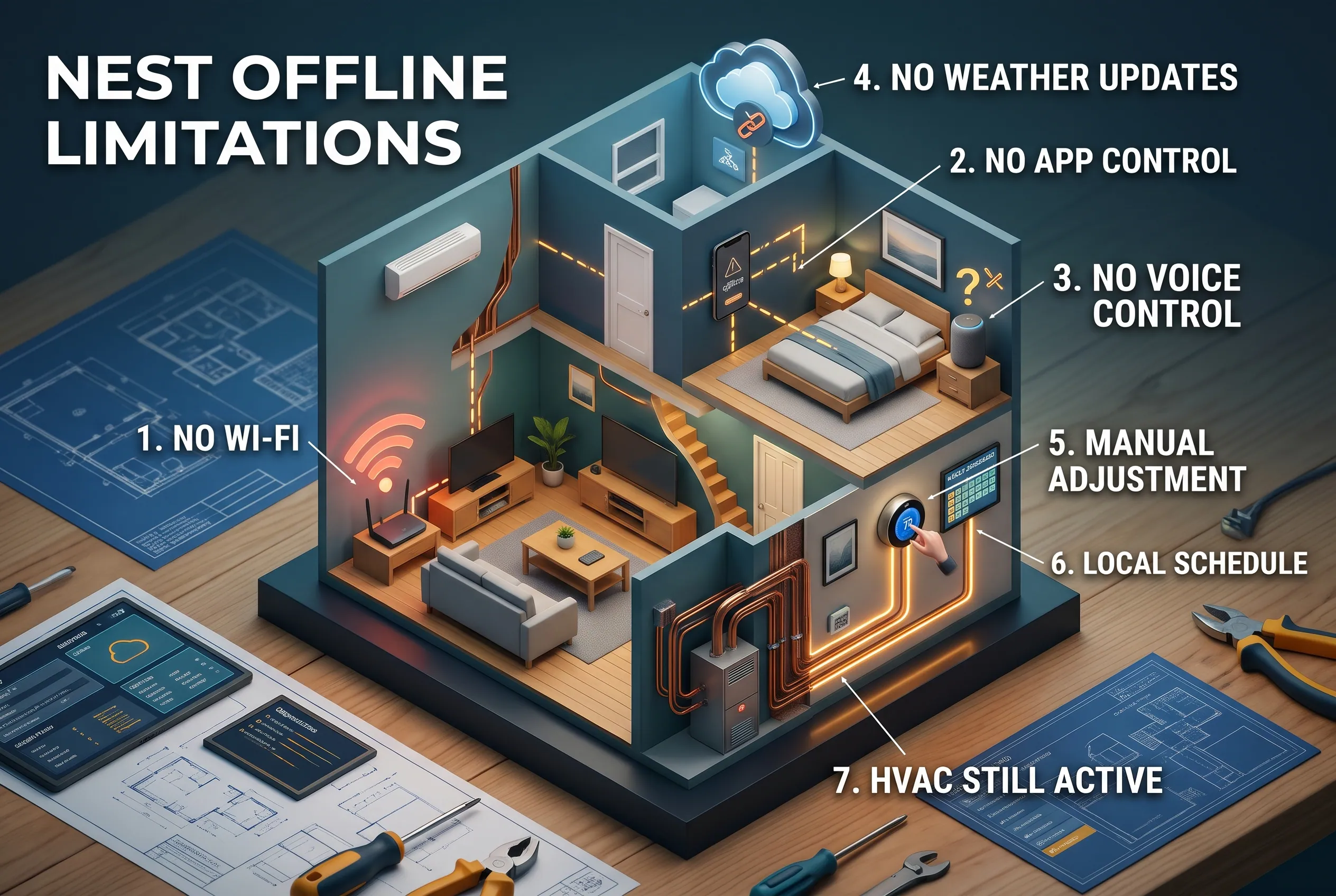
A Nest thermostat becomes less convenient when it cannot connect to your home network. The exact limitations depend on the model, the cause of the disconnection, and the other smart-home devices you use.
Here are the most important differences.
| Feature | What to expect when Wi-Fi is unavailable |
| Manual temperature changes | Generally available on a functioning thermostat |
| Heating and cooling control | Generally available if the thermostat and HVAC system have power |
| Existing temperature schedule | Often continues locally; verify your model and settings |
| Google Home or Nest app control | Unavailable while the thermostat is offline from the required network or service |
| Remote monitoring | Usually unavailable |
| App-based setting changes | Unavailable while the connection is lost |
| Cloud-based notifications and services | May stop or become delayed |
| Software updates | Cannot download new updates without the required internet connection |
| Compatible Matter control | May be possible over a working local network, depending on the setup |
Google explains the app-control limitation in its Nest thermostat troubleshooting guide.
Remote control from your phone
Under normal conditions, you might open an app to adjust the temperature before arriving home.
If your thermostat cannot connect to the network and service needed for remote control, that command may not reach the device. You will generally need to make the change directly on the thermostat instead.
There is an important difference between your home’s internet being down and your phone having no mobile data. If the thermostat remains connected and only your phone loses access to the internet, the situation may be different.
For ordinary remote access from outside the house, expect the app to be unavailable when the thermostat itself is offline.
Voice commands and smart-home routines
Voice control through Google Assistant or another compatible assistant depends on the model and the connection between your devices.
If a voice command relies on a cloud service that cannot be reached, it may fail even though you can still turn the temperature dial.
Some newer devices support local smart-home control, but that does not mean every voice command or routine works without internet access.
The same caution applies to automated routines that depend on your phone’s location, cloud services, or several connected devices. Basic thermostat control and a fully connected smart home are not the same thing.
Weather information and other online features
Features that need fresh information from online services cannot update normally while the required connection is unavailable.
You may also lose access to remote reports, notifications, and cloud-based controls until the connection returns.
These limitations do not necessarily prevent the thermostat from controlling heating or cooling locally.
How to Use a Nest Thermostat Manually
You do not need to begin by fixing your router. First, check whether the thermostat itself still works.
The exact controls vary by model, but these steps provide a useful starting point.
Step 1: Check the thermostat display
Walk up to the thermostat and look at its display.
Does it show the current room temperature? Is there an offline message, a warning symbol, or a blank screen?
If the display is on and the thermostat responds to its controls, you can usually continue with manual operation.
If the screen is blank or a power warning appears, skip to the power troubleshooting section below. A blank display is not simply an ordinary Wi-Fi disconnection.
Step 2: Change the target temperature
Use the controls that match your thermostat.
- Nest Thermostat: Use its touch bar to navigate and adjust the available temperature settings.
- Nest Learning Thermostat and Nest Thermostat E: Turn the outer ring and press it to select options.
- Fourth-generation Nest Learning Thermostat: Use its display and dial controls to adjust the available settings.
For detailed instructions, consult Google’s Nest thermostat settings guide.
For example, imagine that your cooling system is set to 78°F, but you want the home to be cooler. You could lower the cooling setpoint to 75°F if that setting is available for your system.
The thermostat should display the new setpoint. Give the heating or cooling system time to respond.
Step 3: Confirm the operating mode
Check whether your thermostat is set to Heat, Cool, Heat-Cool, or another mode supported by your model.
A temperature change may not produce the result you expect if the thermostat is in the wrong mode.
For example, lowering the setpoint while the system is in Heat mode will not make the air conditioner start cooling. The thermostat follows the selected mode and the settings available for your HVAC equipment.
Step 4: Check for a lock or other restriction
If you cannot adjust the temperature, look for a lock symbol, PIN requirement, or another restriction.
A locked thermostat may be working correctly but prevent certain changes. Some settings can also differ by model or installation.
Do not factory-reset the thermostat simply because you cannot access a menu. Check the display instructions and your model’s official guidance first.
Step 5: Verify that the system responds
After changing the temperature, check whether the heating or cooling system starts when it should.
Listen for normal equipment operation and allow enough time for the room temperature to change.
If the setpoint changes but the system does not respond, possible causes include the wrong mode, an HVAC fault, missing power, or a setting that prevents operation. Restoring Wi-Fi alone may not solve those problems.
Will Your Nest Thermostat Keep Its Schedule Without Wi-Fi?
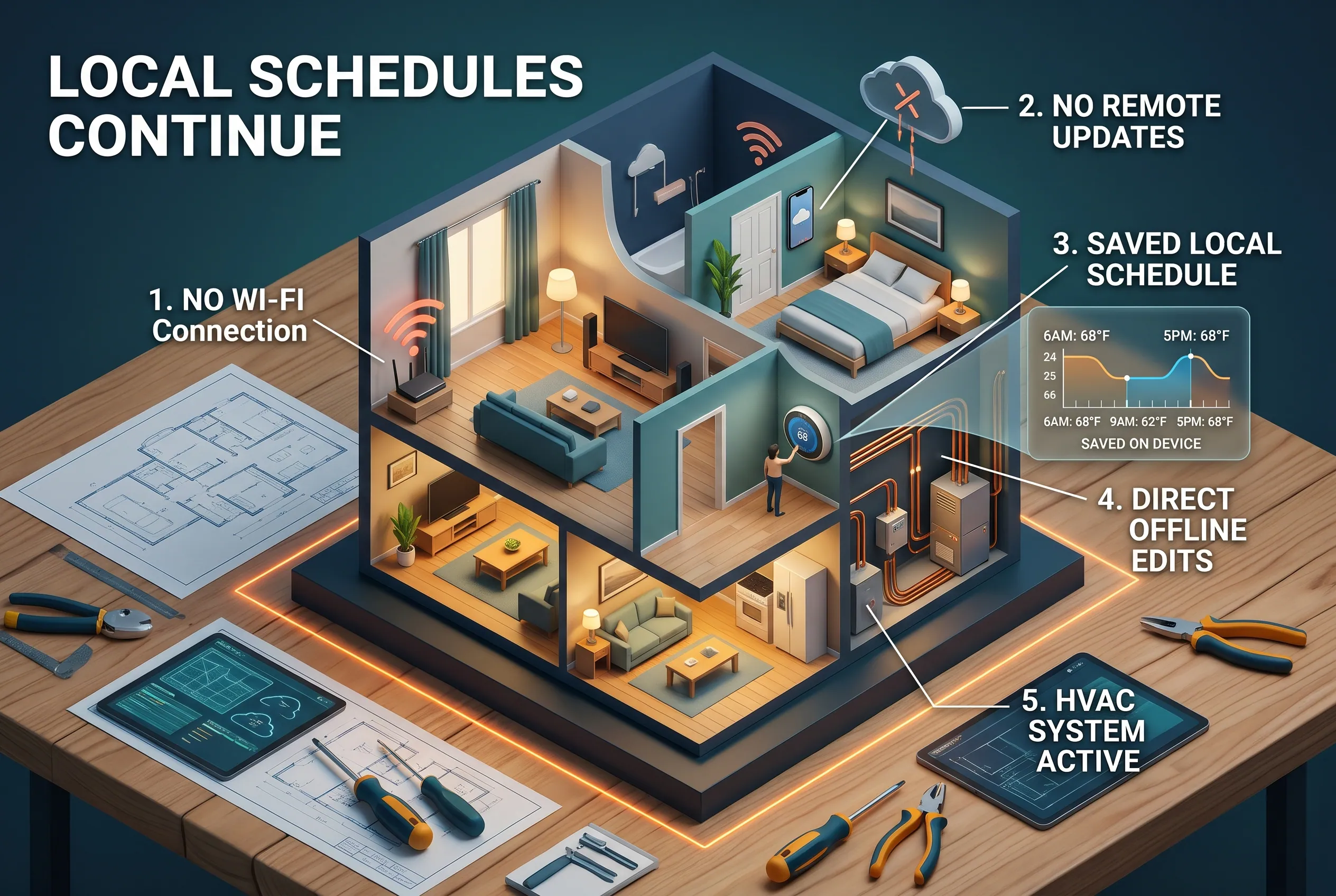
Usually, an existing temperature schedule can continue running during a Wi-Fi outage because the thermostat can use settings already stored on the device. However, the exact behavior depends on the model and configuration, so it is sensible to verify your own thermostat.
A saved schedule is different from a smart routine that needs information from the internet or other devices.
What happens to an existing schedule?
Suppose your thermostat is programmed to heat your home to 68°F in the morning and lower the temperature during the day.
If that schedule is already stored on the thermostat, it may continue operating without a working internet connection. You do not necessarily need to enter every temperature manually.
Google explicitly confirms that the preset schedules on affected first- and second-generation Nest Learning Thermostats continue to work after their app support ended. That is a useful model-specific confirmation, not a promise that every connected feature on every Nest model behaves identically.
Can you change the schedule offline?
Some Nest models allow you to view and adjust schedules directly on the thermostat. The available controls differ by model.
On compatible older Learning Thermostats and the Thermostat E, you can generally open the settings menu, navigate to the schedule, and edit available temperature periods.
If you cannot find the option on your device, check Google’s thermostat settings instructions.
What happens to smart scheduling?
Certain features rely on additional services, sensors, or connected devices. These may be limited while the thermostat cannot communicate with the services they need.
Do not assume that every advanced automation feature continues working simply because the regular temperature schedule still operates.
Practical tip: After the connection returns, check the displayed schedule and temperature settings. This confirms that your preferred settings remain in place.
Wi-Fi Outage vs. Power Outage: What Is the Difference?
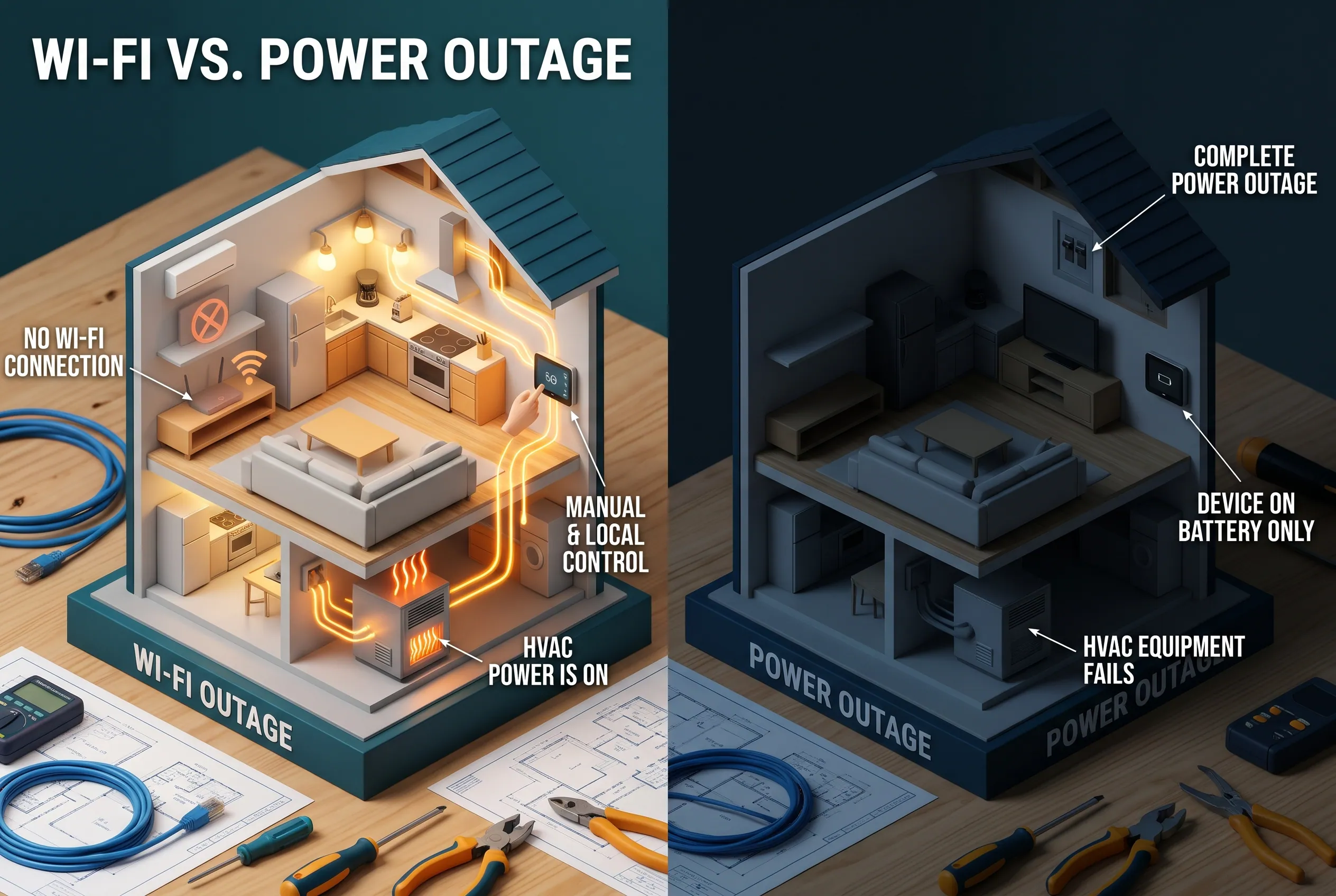
This distinction matters because a Nest thermostat does not generate heat or cold itself. It controls your home’s heating and cooling equipment.
A Wi-Fi outage normally affects communication. A power outage can affect the thermostat, the HVAC equipment, or both.
| Situation | What may happen | What to check |
| Internet service is down | Manual control may continue, but online features can fail | Thermostat display and direct controls |
| Wi-Fi router is off | Thermostat cannot communicate over that Wi-Fi network | Router power and network status |
| Thermostat has a power problem | Display, Wi-Fi connection, or operation may become unreliable | Power warnings and battery status |
| HVAC equipment has no power | Heating or cooling may stop even if the thermostat display remains on | System power and error indicators |
| Household electricity is out | The thermostat and HVAC equipment may lose power | Power restoration and model-specific backup behavior |
Will Nest work without electricity?
Not in the same way it works without Wi-Fi.
Some Nest thermostats have a built-in or backup battery that can support limited device functions. But battery power does not mean the thermostat can run your furnace, air conditioner, or heat pump when that equipment has lost electricity.
The fourth-generation Nest Learning Thermostat has a built-in rechargeable battery and draws power from HVAC system wiring, according to Google’s official specifications.
Its internal battery should not be treated as a whole-system power backup.
What is a C wire?
A C wire, also called a common wire, supplies continuous power to a thermostat. Some installations need one to provide stable power.
Google explains that many Nest thermostats can obtain enough power through the existing heating and cooling wires, but some systems require a C wire or a compatible power accessory. Requirements vary by model and HVAC system.
If your Nest repeatedly disconnects from Wi-Fi, displays a low-battery alert, or reports that it has no system power, the problem might be related to power rather than your internet connection.
Read Google’s C-wire guidance before making assumptions about your installation.
Safety note: Do not remove wires or change thermostat connections while the system is powered. Wiring errors can damage equipment or create an electrical hazard. If you are unsure about your wiring or the source of a power warning, contact a qualified HVAC technician.
How to Troubleshoot an Offline Nest Thermostat
If manual controls work but your thermostat appears offline in the app, start with the least disruptive checks. There is no need to reset the whole system immediately.
1. Check whether the thermostat itself works
Try changing the temperature directly on the device.
If the display responds and the HVAC system operates normally, the problem may be limited to connectivity.
If the display is blank, the controls do not respond, or a no-power warning appears, follow Google’s troubleshooting guide for a thermostat that will not turn on.
2. Check your router and internet connection
If other devices also cannot access the internet, the problem may be with your router or internet service.
Check that the router has power and that your internet provider has not reported an outage. Once service returns, give the thermostat time to reconnect.
If you recently changed your router or Wi-Fi password, the thermostat may still be trying to use the old network details.
Google recommends checking the network name and password, restarting relevant network equipment when appropriate, and checking the thermostat’s connection status directly.
3. Check the Wi-Fi signal
If the internet works on your phone but the thermostat remains offline, the thermostat may have a weak connection.
A thermostat installed far from the router, behind thick walls, or near sources of wireless interference may disconnect more often.
Try checking the network status in the thermostat’s settings. If the signal is weak, consider moving the router to a more open location or using a compatible Wi-Fi extender.
Make sure the change does not disconnect other important devices in your home.
4. Restart the thermostat if necessary
If the network appears healthy but the thermostat still cannot reconnect, a restart may help.
Use the restart procedure documented for your model. The menu steps differ between Nest Thermostat, Nest Thermostat E, and Learning Thermostat models.
A restart is different from a factory reset. A normal restart is intended to reboot the device; a factory reset can remove saved settings and configurations.
Before choosing factory reset, understand that it may erase your temperature schedule and other settings. Try the basic network checks first and follow Google’s instructions for your specific model.
You can use Google’s offline troubleshooting guide for the applicable steps.
5. Investigate a power warning separately
If you see a “No power” or “No system power” message, do not keep restarting the router in the hope that it will fix the problem.
Google lists several possible causes, including incorrect wiring, missing C-wire power where required, a switched-off HVAC system, and an electrical supply problem.
Some power problems can also cause the thermostat to disconnect from Wi-Fi. That is why an offline message alone does not identify the true cause.
Check the visible error message and the official guidance for your model. Leave wiring changes and unresolved electrical or HVAC faults to a qualified technician.
What Changes by Nest Thermostat Model?
Not every Nest thermostat has the same controls, connected features, or setup requirements.
Before following instructions intended for another model, identify the thermostat installed in your home.
Nest Thermostat
The standard Nest Thermostat uses touch controls and supports direct temperature adjustment. It normally remains useful as a basic thermostat when its Wi-Fi connection is unavailable, provided it has power and is functioning correctly.
A new installation is different from offline operation after setup. The setup process for current Nest Thermostat models uses the Google Home app.
Nest Learning Thermostat and Nest Thermostat E
Learning Thermostats and the Thermostat E use a different menu style from the standard Nest Thermostat. Many models use the outer ring to open menus and select settings.
These devices can generally be adjusted directly, but exact menu options and features depend on the generation and installation.
Check the instructions for your model before changing advanced settings or attempting a reset.
First- and second-generation Nest Learning Thermostats
There is an important support change for older users.
Google ended app support for first- and second-generation Nest Learning Thermostats on October 25, 2025. These affected models no longer connect to or work in the Nest or Google Home app. Users also lose remote control and other connected or cloud-based features.
However, Google states that owners can still use the thermostat directly. Its preset schedules continue to work, and users can still change temperature modes and access other settings available on the device.
See Google’s official end-of-support notice.
This means an older Nest thermostat may continue controlling heating and cooling locally even though it can no longer provide the app experience some owners expect.
Fourth-generation Nest Learning Thermostat
The fourth-generation Learning Thermostat supports Google Home and Matter, a smart-home standard that allows compatible devices and apps to communicate.
Google confirms Matter support in its official product specifications.
Matter can support local smart-home control in compatible setups, but this needs careful interpretation. If your Wi-Fi network itself is down, a phone or another device may not be able to communicate with the thermostat over that network. If only the internet connection is down while your local network remains available, certain local controls may still work.
Do not assume that Matter guarantees every phone app, voice command, or smart-home routine will function during every kind of outage.
Also remember that the fourth-generation model’s initial setup requires the Google Home app. Being able to operate an already installed thermostat offline does not mean you can complete every first-time setup step without the required app and connectivity.
Frequently Asked Questions
Can you use a Nest thermostat without the Google Home or Nest app?
Yes. An installed Nest thermostat can generally be controlled directly on the device without opening the app. You can usually change the target temperature and access supported local settings. App-based controls and some connected features will be unavailable if the thermostat cannot reach the services they require.
Does a Nest thermostat keep its schedule when Wi-Fi is down?
An existing schedule can generally continue running locally during a Wi-Fi outage, but behavior depends on the model and configuration. Google explicitly confirms that schedules continue on first- and second-generation Learning Thermostats affected by the app-support change. Check your own thermostat’s schedule and settings to confirm what remains available.
Will a Nest thermostat work without power?
Not as a complete heating and cooling control system. An internal battery may support limited thermostat functions, depending on the model, but it cannot replace the electricity needed by your furnace, air conditioner, or heat pump. A no-power warning needs separate troubleshooting from a simple Wi-Fi problem.
Can you control a Nest thermostat from your phone without home Wi-Fi?
Remote control normally needs the thermostat to communicate with the required network and services. If home Wi-Fi is unavailable, you generally cannot rely on ordinary remote access through the app. A compatible fourth-generation Matter setup may allow certain local controls when the home network remains available, but it does not guarantee control during a complete Wi-Fi network failure.
The Best Next Step
If your Nest thermostat has lost Wi-Fi, first try changing the temperature directly on the device. If it responds and your heating or cooling system operates normally, you can usually continue using it while you troubleshoot the connection.
If the display is blank, a low-battery warning appears, or the HVAC system does not respond, investigate power and equipment issues separately. Once you identify whether the problem is connectivity, power, or a model-specific limitation, you can choose the right fix without resetting the thermostat unnecessarily.
Disclaimer
Homes, budgets, equipment, and conditions vary, so check the instructions for your exact Nest model. Seek qualified HVAC help for wiring, electrical supply, or equipment faults you cannot safely identify.