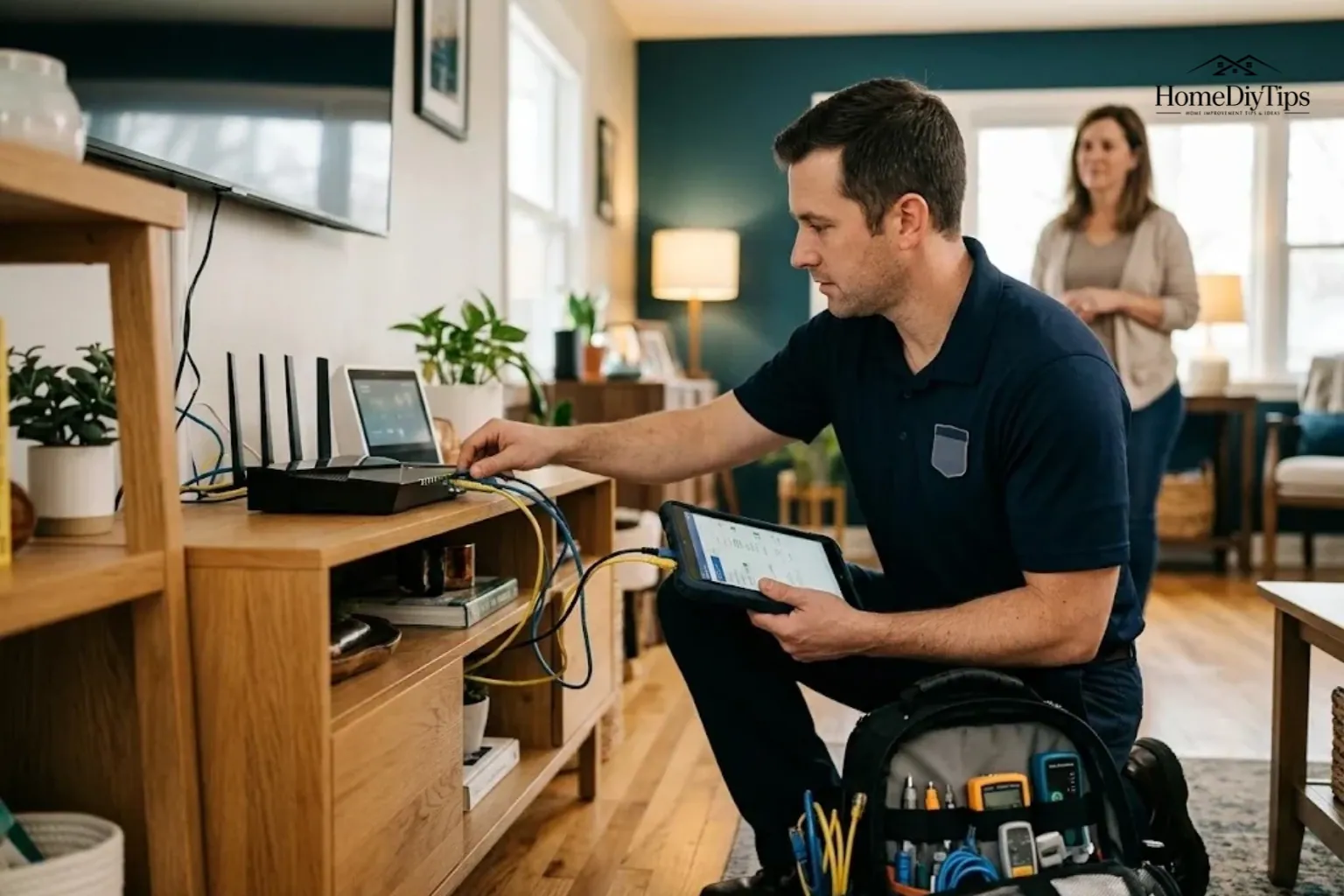
A network support service helps you set up, troubleshoot, maintain, or secure the connections that keep your home devices online. It can help with slow Wi-Fi, weak signals, disconnected smart devices, router settings, and other network problems.
The right service depends on where the problem starts. If your internet provider has an outage, you may need your internet service provider (ISP) to fix it. If your connection works in one room but fails in another, a network technician may help diagnose your home Wi-Fi setup instead.
Before paying for help, identify what is not working, check a few basic things, and compare services carefully. This guide explains what network support includes, how to choose between remote and in-home help, what residential services may cost, and how to avoid paying for work you do not need.
Direct Answer
A network support service helps set up, troubleshoot, maintain, or secure a home network. It can address Wi-Fi, router, Ethernet, and connected-device problems, but ISP outages may require your internet provider.
Experience
Before booking, note which devices and rooms have connection problems and whether other devices still work. These details can help a provider narrow down the cause, but they do not guarantee the fault is inside your home network.
What Is a Network Support Service?
A network support service provides technical help with the equipment and connections that allow computers, phones, televisions, security cameras, and other devices to communicate with one another and access the internet.
Your home network usually includes several parts:
- Modem: Connect your home to your internet provider’s network.
- Router: Directs network traffic between connected devices and the internet. Many modern routers also provide Wi-Fi.
- Wi-Fi access point: Sends a wireless signal that devices use to connect to the network.
- Ethernet cable: Creates a wired network connection between compatible devices.
- Connected devices: Phones, laptops, smart TVs, printers, cameras, thermostats, and other equipment that use the network.
Some equipment combines several functions. For example, an ISP may supply a gateway that includes both a modem and a router.
A network support technician helps identify problems with these components, configure their settings, connect devices, or improve how the network works. The exact work depends on the provider’s service package.
What services are usually available?
Common services include:
- Setting up a new router or replacing an existing one.
- Connecting phones, computers, televisions, and smart-home devices.
- Checking Wi-Fi coverage and diagnosing weak signals.
- Troubleshooting slow or unreliable connections.
- Configuring guest networks and basic security settings.
- Investigating problems with existing Ethernet connections.
- Recommending equipment for larger homes or difficult coverage areas.
- Installing or configuring additional network equipment when included in the service.
Some providers offer one-time technical assistance. Others offer ongoing monitoring and maintenance, usually for customers who need regular support.
Business network support may include advanced security systems, multiple network switches, continuous monitoring, and managed IT services. These services are more extensive than most household needs and should not be confused with a basic home Wi-Fi setup.
The main rule is simple: choose a service that covers your actual problem rather than buying the broadest package available.
What Problems Can a Home Network Support Service Fix?
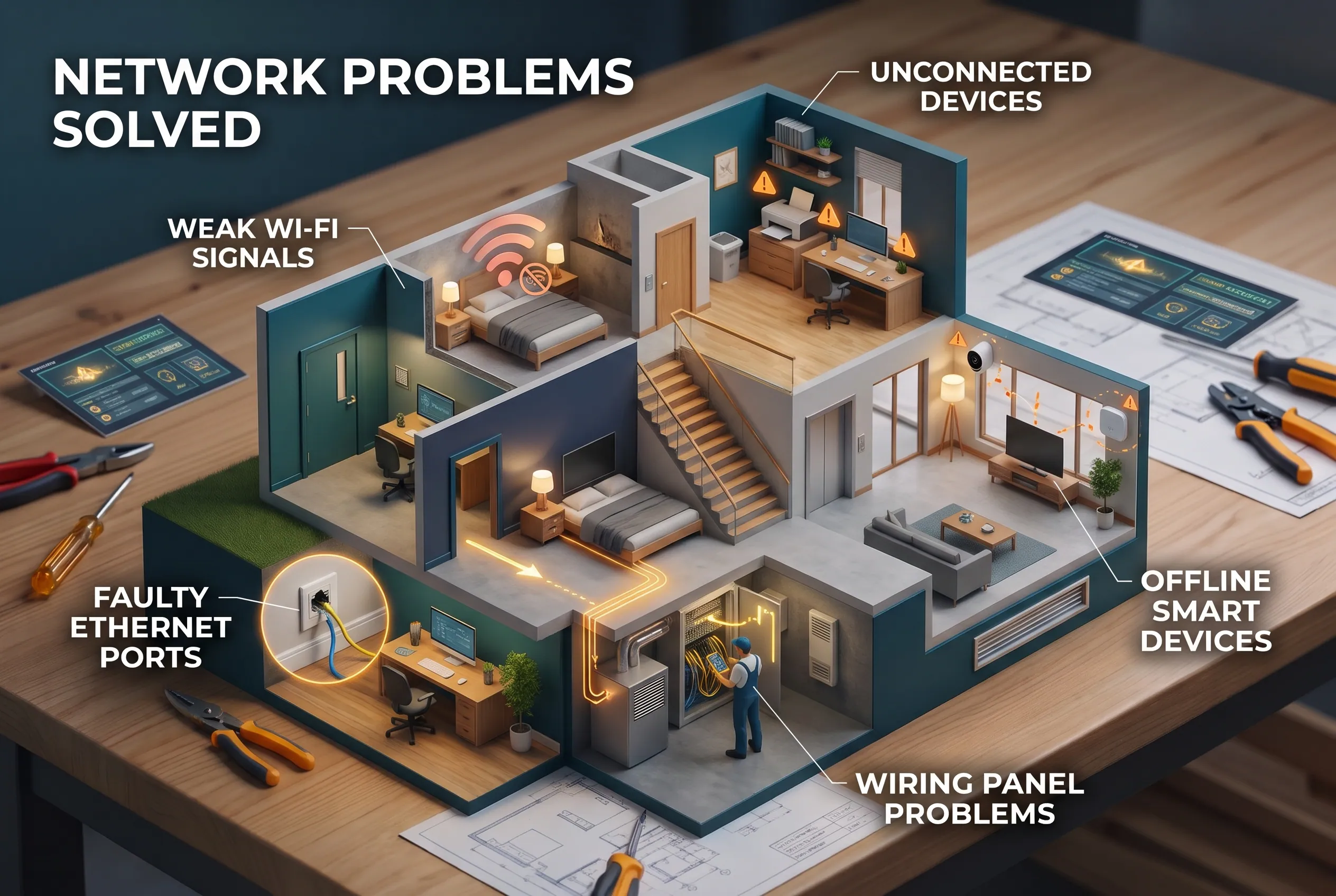
Home network support is useful when you know something is wrong but cannot confidently identify the cause.
Slow Wi-Fi and weak signals
A slow connection can have several causes. Your internet plan may be too limited for your household’s needs, your network may be congested, or your router may provide a weak signal in certain rooms.
Physical obstacles, router placement, and interference can also affect wireless performance.
For example, imagine that video calls work well in your living room but repeatedly freeze in an upstairs bedroom. The internet service itself may be working properly, while the wireless signal struggles to reach that room.
A technician can test the connection, inspect the router’s location, and determine whether the problem calls for repositioning equipment, improving coverage, changing settings, or using a wired connection.
Adding a Wi-Fi extender immediately is not always the right answer. First establish whether the problem comes from the wireless signal, the internet connection, or the equipment.
Devices that will not connect
Sometimes a single device refuses to join the network while everything else works normally.
This can happen with a smart camera, printer, television, thermostat, or video doorbell. The cause may be an incorrect password, an outdated app, incompatible Wi-Fi settings, or a device that needs its own troubleshooting.
Before booking support, check whether other devices can connect. Confirm that you are using the correct network name and password, and check the device manufacturer’s instructions.
If only one device fails, specialized device support may be more appropriate than a full network service.
If several devices fail at the same time, the router or network configuration may need attention.
Wired Ethernet problems
Ethernet uses a physical cable to connect devices to a network. It can provide a more consistent connection than Wi-Fi in suitable installations, but damaged cables, disconnected ports, and incorrectly configured equipment can prevent it from working.
Some homes have Ethernet ports in several rooms. Those wall ports may connect to a central wiring panel, where equipment or cables need to be configured correctly.
Ask a provider whether the service includes testing existing Ethernet connections. Basic Wi-Fi setup does not automatically include repairing wall ports, running new cables, or configuring a complicated wired network.
Smart-home connectivity problems
Smart-home devices often depend on a stable network connection. A camera may go offline, a smart speaker may stop responding, or a thermostat may lose its connection to an app.
Network support can help determine whether the issue involves Wi-Fi coverage, network settings, or device connectivity.
However, a technician cannot necessarily fix a faulty camera, a defective power supply, or a problem with the manufacturer’s online service. Confirm what the provider can diagnose before booking.
Should You Contact Your Internet Provider or Hire Network Support?
Start with your internet provider when the problem appears to involve the connection entering your home. Consider an independent network support service when the internet connection works but your home equipment, wireless coverage, or device connections cause trouble.
The distinction matters because you may not need to pay a separate technician.
| Problem or symptom | Best first step |
| The internet is completely down across several devices | Check your ISP’s outage information and contact its support team |
| Your modem shows a connection warning | Follow the manufacturer’s instructions and contact your ISP if the problem continues |
| Wi-Fi works near the router but not in distant rooms | Check router placement and coverage; consider network support if the cause is unclear |
| Only one laptop or phone has trouble | Check that device before arranging a network visit |
| Several smart devices cannot connect | Check the router, network settings, and device compatibility |
| Ethernet wall ports do not work | Ask whether the problem involves the equipment, wiring, or port configuration |
| You need a new home network or multiple access points | Request an assessment from a provider that handles network design and installation |
These are starting points, not guaranteed diagnoses. A modem problem can affect every room, while a router issue can make the entire home appear to have an ISP problem.
For compatible Google Nest Wifi and Google Wifi equipment, Google’s internet speed and Wi-Fi troubleshooting guide explains how to run tests and assess possible network or provider issues.
You can also try a normal modem or router restart if the device instructions recommend it. Google’s modem restart instructions explain the process for the supported equipment.
If the connection remains down, contact your ISP rather than repeatedly restarting devices or changing settings without a clear reason.
Remote Network Support vs. In-Home Service
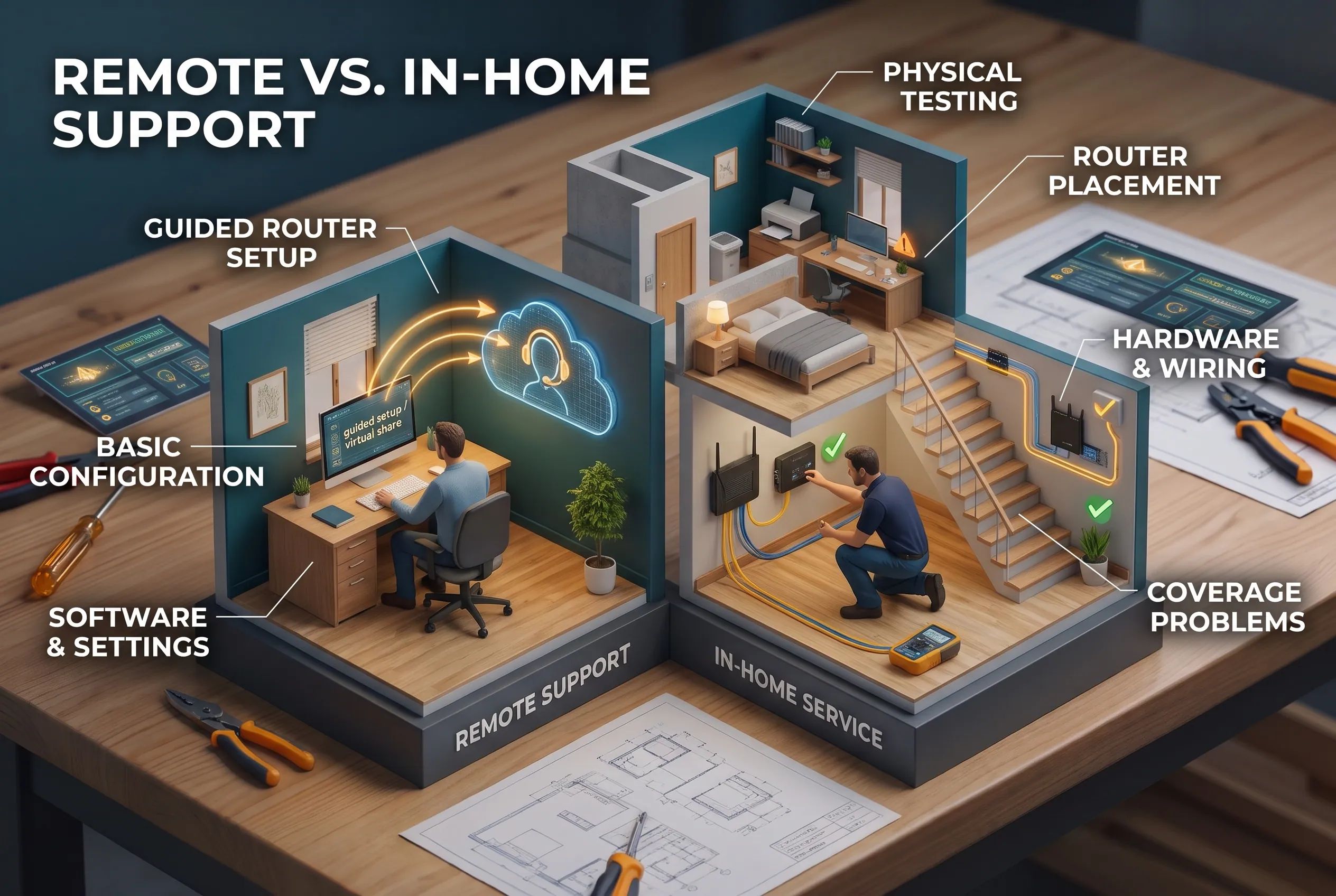
Network support is not always delivered in the same way. Some issues can be handled remotely, while others require someone to inspect the equipment and signal conditions in person.
When remote support makes sense
Remote network support uses a phone call, video session, screen-sharing tool, or approved remote connection to help diagnose and configure compatible equipment.
It may be suitable for:
- Guided router setup.
- Basic network configuration.
- Connecting a limited number of devices.
- Checking settings on a compatible computer or router.
- Troubleshooting straightforward connection problems.
Remote help can be convenient because you do not need to arrange an in-home appointment. It may also cost less than a service that includes travel and a physical inspection.
However, remote support cannot physically test a damaged cable, inspect the placement of access points, or directly measure signal conditions throughout every room.
When an in-home visit is better
An in-home technician can inspect equipment, test coverage in different locations, check accessible cables, and assess how your home’s layout affects wireless performance.
Consider an in-home service when:
- Wi-Fi repeatedly fails in particular rooms.
- You need help choosing where to place routers or access points.
- Existing Ethernet ports do not work.
- You want to improve coverage in a detached garage or outdoor workspace.
- Multiple devices have trouble and remote diagnosis has not identified the cause.
- You are considering a new network installation.
For example, a two-story home with a home office upstairs may need a different setup from a small apartment. A detached garage can create another challenge because the signal must travel farther and may pass through exterior walls.
A technician can assess the situation, but the visit does not guarantee that every coverage problem can be fixed without additional hardware or wiring.
Protect your privacy during remote support
Before granting remote access, confirm the provider’s identity and understand what the technician needs to access.
Use an approved support tool, remain present during the session, and close the connection when the work ends. Avoid sharing passwords for banking, email, or unrelated accounts.
For other security measures, the Federal Trade Commission’s guide on securing your home Wi-Fi network explains network encryption, guest networks, and router security settings.
How Much Does a Home Network Support Service Cost?
The price depends on the type of help, the work included, and whether the technician needs to visit your home.
Two published Best Buy Geek Squad service listings provide useful US examples:
| Service | Published price | What the listing includes |
| Network Setup and Support | $99.99 | Remote network setup, configuration or troubleshooting; configuration of one router and connection of up to two wireless devices |
| Home Wi-Fi Setup | $174.99 | In-home router setup, wireless device connections, signal testing, router-placement guidance, and help with dead zones and slow Wi-Fi |
These are examples of specific published service packages, not national average prices. Prices and availability can change, and another provider may offer a different scope of work.
The in-home listing estimates approximately 90 minutes for the service and requires an existing, functioning ISP modem, gateway, or optical network terminal (ONT). An ONT is equipment that connects a fiber-optic internet line to the home’s network equipment.
The listed price does not mean every repair, new device, or installation is included. Check the actual service terms before booking.
What can increase the total cost?
Your total bill may be higher when you need:
- New routers, mesh equipment, switches, or access points.
- Additional Ethernet cables or new wiring.
- More devices configured than the package includes.
- Troubleshooting outside the advertised service scope.
- Complex installations that require extra labor.
- A return visit or additional specialist work.
Ongoing monitoring or managed network support is another type of service. It may be useful for a small business with several users and important systems, but many households need only occasional assistance.
When comparing quotes, ask whether the provider charges a fixed fee, an hourly rate, or a recurring amount. Confirm any diagnostic fee, minimum visit charge, equipment cost, and extra-work rate.
A low initial price is not necessarily the cheapest solution if the service excludes the work you actually need.
How to Choose the Right Network Support Provider
The right provider should understand your problem, explain the proposed work, and make the cost clear before starting.
1. Confirm that the provider handles your problem
A provider may specialize in remote computer support, while another may handle router setup, home Wi-Fi coverage, Ethernet wiring, or smart-home installations.
Describe your problem in plain language. For example, tell the provider that Wi-Fi works downstairs but disconnects upstairs, or that several devices cannot connect after a router change.
Ask whether the provider can diagnose that specific issue and what happens if the cause turns out to be outside the advertised service.
2. Compare what is included
Do not compare quotes by price alone. Check whether each service includes testing, configuration, device connections, and advice about improving coverage.
Ask these questions before booking:
- Is the service remote or in-home?
- Which devices and network components are included?
- Does the price include diagnosing the problem?
- Are cabling, additional hardware, or installation separate?
- Is follow-up support available if the problem remains?
- What happens if the technician discovers a different problem?
Written answers make it easier to compare providers fairly.
3. Check availability and service terms
Search for a provider that serves your area and can offer an appointment that fits your schedule.
If you are looking for a network support service open now, confirm that the provider is accepting appointments or support requests at the time you contact it. Published business hours do not guarantee immediate availability.
You can also look at independent customer reviews, but read the details instead of relying only on an average rating. Reviews mentioning similar problems may be more useful than reviews about unrelated services.
A provider should also explain its cancellation terms, payment requirements, and any workmanship or service warranty.
4. Check security practices
A technician may need temporary access to router settings or a computer to complete the work. Ask how access is provided, what information is collected, and whether any changes will affect your existing security settings.
A suitable provider should be able to explain the process clearly. You should not feel pressured to share unrelated account passwords or approve access you do not understand.
If the work includes router security, ask about the Wi-Fi password, encryption settings, firmware updates, and guest network options.
5. Consider your home and rental restrictions
The best solution depends on the building and how you use it.
In a larger home, you may need a coverage assessment before purchasing mesh equipment or installing additional access points. In a rental property, check your lease before drilling holes, running permanent cables, or making lasting changes.
Renters can often explore non-permanent options first, such as moving the router to a better location or using approved equipment. Any proposed wiring or installation should fit the property rules and the provider’s instructions.
What to Check Before and After Getting Network Support
A little preparation can help the technician diagnose the problem faster and help you decide whether the service worked.
Before the appointment
Step 1: Describe the problem. Note which devices are affected, which rooms have weak coverage, and when the trouble began. Mention any recent router change, service interruption, or new smart device.
Step 2: Check your equipment. Make sure the modem and router have power. Look at the status lights and follow the instructions for your equipment. Do not assume that the same light pattern means the same thing on every model.
Step 3: Test the connection if possible. Run a speed test on a compatible device and record the result. Repeat it in the problem area if practical. A single test is only a snapshot, so note whether the issue happens repeatedly or mainly at certain times.
Step 4: Prepare access details. Have the relevant network information available, but do not send passwords through insecure messages. Ask the provider how it will handle any credentials needed during the appointment.
After the appointment
Test the devices and locations that had problems before the work started.
For example, check whether the upstairs video call now stays connected, whether the smart camera appears online, or whether the Ethernet port provides a working connection.
If your provider changed router settings, ask which changes were made and whether you need to keep any instructions for future troubleshooting.
Do not judge success only by a single speed-test number. Stable connections, fewer dropouts, and reliable access in the rooms you use are also important.
If the issue remains, explain what you tested and what still fails. Ask whether the original service covers follow-up work or whether the remaining problem requires a different service.
Common Mistakes When Hiring Network Support
A few common mistakes can lead to wasted money or an incomplete repair.
Buying equipment before identifying the cause. An extender or new router may help, but it will not necessarily fix an ISP outage or a faulty device. Diagnose the problem first.
Assuming Wi-Fi setup includes wiring repairs. A standard router setup may not cover Ethernet wall ports, new cable runs, or complex installations. Confirm the scope in writing.
Expecting a technician to fix an ISP outage. Network support may help identify the issue, but only the responsible provider may be able to repair the external connection.
Choosing the lowest price without checking exclusions. A cheaper service can cost more overall if it does not include the required testing or follow-up work.
Paying for ongoing support you rarely need. A recurring support agreement may make sense for a business, but many homes need only one-time help.
Ignoring permanent installation requirements. Renters should check permission rules before approving drilling or new wiring. Homeowners should also confirm the proposed work and any relevant installation requirements before proceeding.
Frequently Asked Questions
What does a network support specialist do?
A network support specialist helps set up, configure, maintain, and troubleshoot network equipment and connections. For a home, this may include router setup, Wi-Fi coverage checks, connected-device problems, and some Ethernet issues. The exact tasks depend on the specialist’s training and service agreement.
What are the four types of network services?
There is no single universal four-type classification used by every provider. For practical purposes, home network support can be grouped into four areas: troubleshooting, setup and configuration, maintenance and security, and advanced installation or network design.
Is network support the same as internet service?
No. Internet service provides your connection to the wider internet, usually through an ISP. Network support helps set up and troubleshoot the equipment and connections inside your home. The two can overlap when a problem affects both the modem and your home network.
Can network support help with smart-home devices?
Yes. Network support may help connect cameras, smart speakers, thermostats, and other compatible devices to your Wi-Fi. However, it may not cover a defective device, a manufacturer account problem, or a fault with an online service. Confirm what the provider supports before booking.
Is remote network support enough to fix weak Wi-Fi?
Sometimes. Remote support can help diagnose router settings and basic configuration problems, but it cannot physically inspect your home or directly test every room. Persistent dead zones, wiring issues, or complex multi-level layouts may require an in-home assessment.
Choose Support That Matches the Problem
Before hiring a network support service, identify which devices are affected, check whether your ISP has an outage, and note what you have already tried. These simple steps can help you avoid paying for unnecessary work.
Then compare providers based on their experience with your particular issue, the work included, the full cost, and their follow-up terms. Choose remote support for suitable configuration problems and in-home service when physical inspection or wiring assessment is needed.
The goal is not to buy the most expensive equipment or the broadest support plan. It is to identify the problem, get the right help, and finish with a home network that works reliably for the devices and rooms you actually use.
Disclaimer
Home network setups, equipment, service prices, and results vary. For new cabling, permanent installation, electrical work, or complex repairs, use a qualified provider and follow your rental agreement and applicable local requirements.