
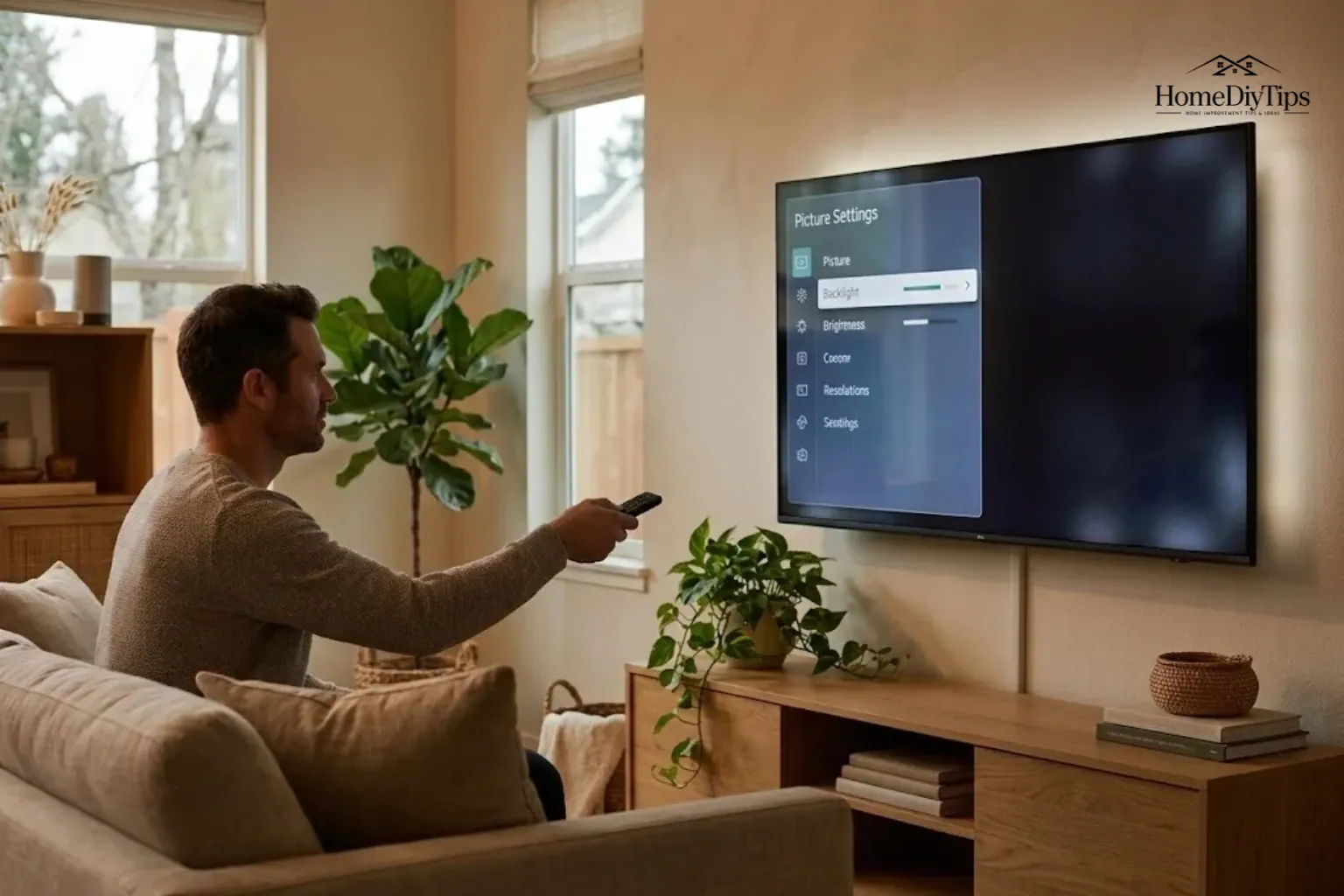
A TV backlight is the light source behind an LCD screen that makes the picture visible. Most LED TVs use tiny light-emitting diodes (LEDs) to illuminate the screen, allowing you to see colors, faces, and details in movies and TV shows. Without this light, a traditional LCD panel cannot display a visible picture by itself.
The Backlight setting on your TV controls how much light the screen produces, although the name and behavior vary by model. It is different from the Brightness setting, which usually adjusts the dark levels of the picture. Understanding this difference can help you improve picture quality and avoid unnecessary repairs. OLED TVs work differently because their individual pixels produce their own light.
Whether you’re adjusting a Samsung TV, troubleshooting a dim screen, or deciding if backlight repair is worthwhile, the first step is to understand what the backlight does and what its settings actually control.
Direct Answer
A TV backlight is the light source behind or around an LCD screen that illuminates its picture. The Backlight setting usually controls overall light output, while OLED TVs use self-lit pixels instead.
Experience
Before assuming your TV’s backlight has failed, check the picture mode, energy-saving options, and input. A faint image under a flashlight can be a clue, but it cannot confirm which part has failed.
What Is a Backlight on TV?
A backlight is an internal lighting system used by an LCD television. It sits behind the screen or along its edges and shines light through the display panel to create the picture you see.
LCD stands for liquid-crystal display. The liquid crystals help control how much light passes through different parts of the screen. Color filters produce red, green, and blue components, which combine to display images.
Think of the backlight as a lamp behind a detailed picture. The lamp supplies the light, while the display panel controls how that light forms the image.
Most modern TVs described as LED TVs are actually LCD TVs that use LEDs for backlighting. The LED lights do not create the complete picture by themselves; the LCD panel controls the light to show the image.
A TV’s backlight also affects how bright the screen looks in a sunny room, how dark scenes appear, and how much detail you can see in shadows.
What does the Backlight setting do?
The Backlight setting generally controls the overall light output of an LED/LCD TV.
For example, imagine watching a movie during the day. Sunlight enters the room, making the TV picture look less visible. Increasing the backlight may help the picture stand out.
At night, the same setting may make the screen feel too bright. Lowering the backlight can make viewing more comfortable.
Some TVs use settings such as Backlight, Panel Brightness, or similar names. Other models include automatic features that change the light output based on picture content or room conditions.
Check your TV’s manual if the menu uses unfamiliar terms. Samsung provides guidance in its official picture-settings support page.
How Does a TV Backlight Work?
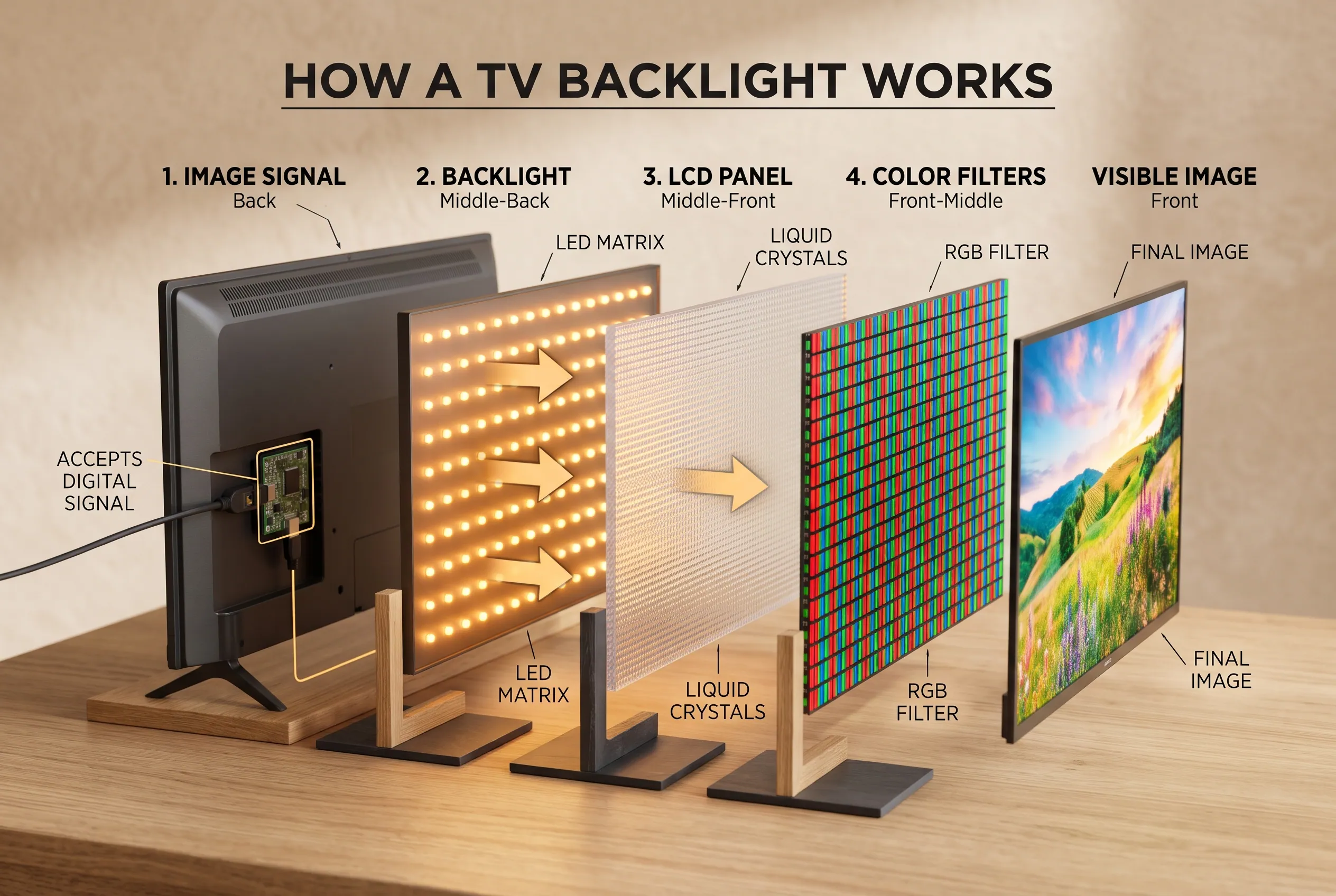
An LED/LCD television uses several parts to turn an electronic picture signal into a visible image. The backlight provides illumination, and the LCD panel controls how that light passes through the screen.
Here is the basic process:
- The TV receives an image signal. This may come from a streaming app, cable box, gaming console, or another connected device.
- The backlight supplies light. LEDs behind or around the screen illuminate the display.
- The LCD panel controls the light. Liquid crystals change how much light passes through each part of the screen.
- Color filters create the image. Red, green, and blue components combine to produce the colors you see.
These processes happen rapidly, allowing the television to display moving images.
Why does backlight level affect picture quality?
The backlight affects more than how easily you can see the screen in a bright room.
A higher backlight setting can help bright scenes remain visible in daylight. However, it does not automatically improve every part of the picture. If the setting is too high for a dark room, the image may feel harsh or uncomfortable.
A lower setting can suit evening viewing, but reducing it too far may make the picture difficult to see in a brightly lit room.
The screen’s contrast also depends on the LCD panel, local dimming features, picture processing, and the quality of the display itself. Increasing the backlight cannot fix every problem with contrast or dark-scene detail.
For more technical background, see RTINGS’ explanation of LCD and LED display technology.
What Are the Main Types of TV Backlights?
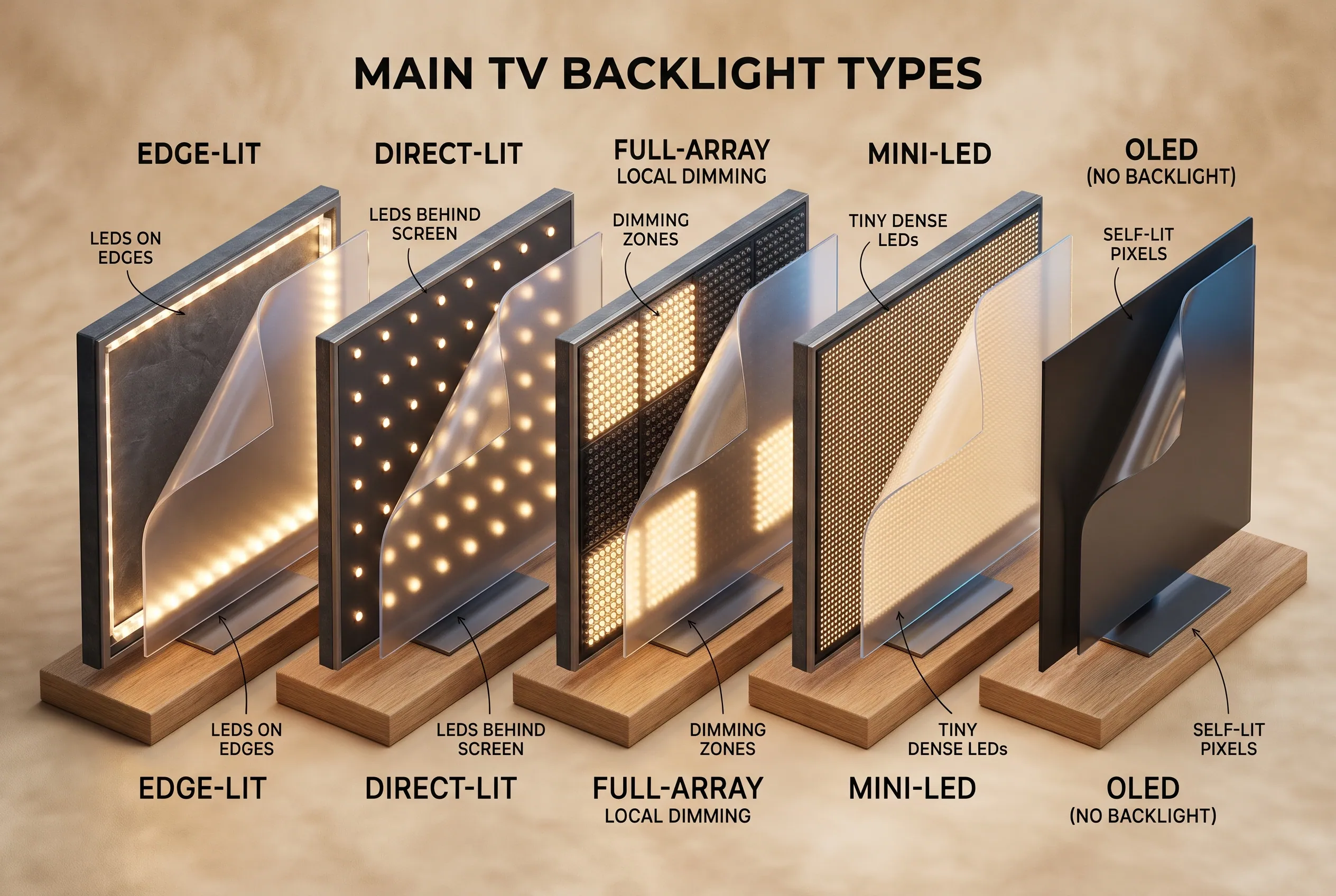
Not every LED television uses the same lighting design. The placement and control of the LEDs can affect the TV’s thickness, brightness, contrast, and ability to display dark scenes.
1. Edge-lit backlighting
An edge-lit TV places its LEDs along one or more edges of the screen. Light spreads across the panel through an optical system designed to distribute illumination.
The main advantage is that this design can support a slim television.
However, light may not appear perfectly even across the screen. Some edge-lit TVs show brighter areas near the corners or edges, especially when displaying dark scenes.
Edge-lit TVs can still deliver good picture quality. Their performance depends on the panel, light distribution, and image processing, so the design alone does not tell you exactly how the TV will look.
2. Direct-lit backlighting
A direct-lit TV places LEDs behind the screen rather than only along its edges.
This design spreads the light sources across the rear of the panel. Depending on how the LEDs and optical layers are arranged, it can provide more even illumination than some edge-lit designs.
However, direct-lit does not automatically mean the TV has local dimming. A basic direct-lit model may control its backlight as one group instead of adjusting separate areas.
This distinction matters when comparing televisions. The number of LEDs and how they are controlled can affect the picture as much as their location.
3. Full-array local dimming
Full-array local dimming uses LEDs placed behind the panel and divides them into separate lighting zones. The TV can brighten some zones and dim others based on the image.
For example, imagine a nighttime scene with a bright moon in a dark sky. The TV may keep the area around the moon brighter while dimming other areas to improve contrast.
This can make dark scenes look more convincing, particularly in HDR content. HDR stands for high dynamic range, a format designed to show a broader range of brightness and detail.
There are limits, though. Each zone covers an area rather than a single pixel, so a bright object against a dark background can sometimes produce a glow around the object. This effect is often called blooming.
The quality of local dimming depends on the TV’s zone count, panel, algorithms, and overall design.
4. Mini-LED backlighting
Mini-LED is an advanced form of LED backlighting that uses much smaller LEDs. Manufacturers can fit more light sources behind the screen and, in suitable designs, provide more precise control over lighting zones.
Mini-LED TVs often aim to deliver strong brightness and better control of dark areas than simpler LED-backlit LCD models.
However, the Mini-LED name does not guarantee identical results across all brands. A TV’s local dimming system, panel quality, and picture processing still matter.
When shopping, compare independent reviews of the exact model rather than relying on the technology name alone.
5. Does an OLED TV have a backlight?
No. OLED televisions do not use the conventional backlight found in LED/LCD TVs.
OLED stands for organic light-emitting diode. Each pixel produces its own light, so individual pixels can turn off completely when the picture calls for black.
This can help OLED TVs display very deep blacks and strong contrast in dark scenes.
It also means that the Backlight setting used on an LCD/LED TV does not apply in the same way to OLED. OLED models use different controls for adjusting picture brightness.
One important distinction: a QLED TV generally remains an LCD television with LED backlighting, even though it uses quantum-dot technology to improve color. QLED should not be confused with OLED.
Backlight vs. Brightness: What Is the Difference?
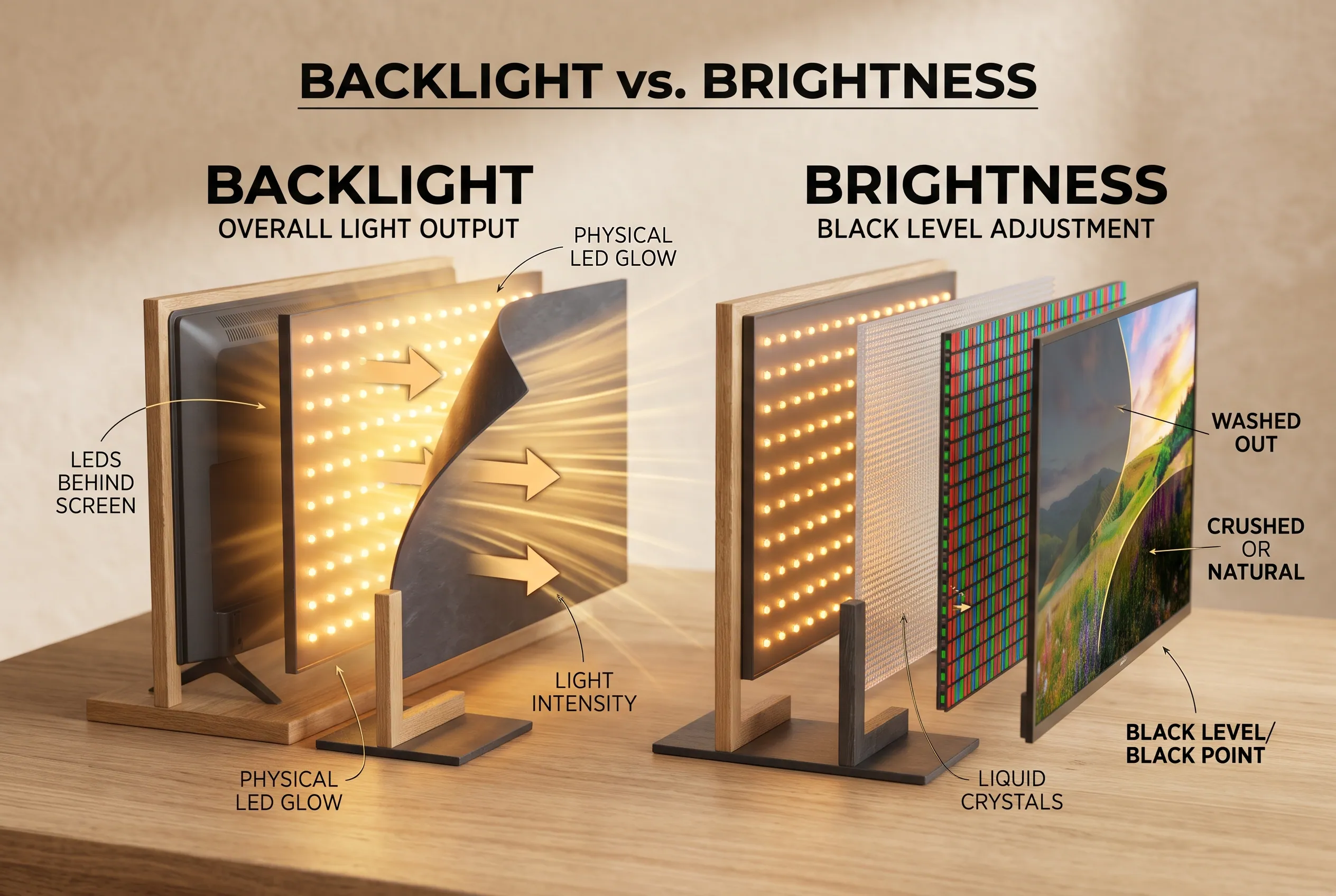
Backlight and Brightness may sound like two names for the same thing, but they often control different parts of the picture.
On many LED/LCD televisions, Backlight controls the screen’s overall light output, while Brightness adjusts the black level. Contrast generally affects the difference between darker and brighter picture levels.
| TV control | What it usually does | When you might adjust it |
| Backlight | Changes the overall light output of the LCD screen | The picture looks too dim or too bright for the room |
| Brightness | Adjusts the dark level or black point | Dark details appear crushed or black areas look gray |
| Contrast | Adjusts the brighter levels of the picture | Bright details appear washed out or lose definition |
| Local dimming | Controls separate backlight zones on supported TVs | Dark scenes have weak contrast or uneven lighting |
| Energy-saving mode | May reduce screen light output to lower energy use | The picture seems dimmer than expected |
These descriptions are common, not universal. Some manufacturers use different names or combine several controls. Always check your model’s instructions before changing advanced settings.
A simple example
Suppose you’re watching a film in a living room with bright windows. The picture looks dull, even though the colors seem normal.
Raising the Backlight setting may improve visibility because the screen produces more light.
Now imagine watching the same film at night. The dark areas look gray and the picture seems washed out. Increasing the Brightness control may make the problem worse because it can raise the black level.
Instead of changing several controls at once, adjust one setting, check the result, and move to another only if necessary.
For a model-specific guide, consult TCL’s TV settings support page.
How Should You Adjust Your TV Backlight?
There is no single ideal backlight setting for every TV. The right level depends on your room lighting, viewing habits, and the television’s capabilities.
Use these steps to find a setting that works for you.
Step 1: Check the picture mode
Open your TV’s picture settings and review the selected mode.
Common options include Standard, Cinema, Movie, Filmmaker, and Vivid. The available names depend on the model.
Vivid mode may use aggressive brightness and color settings. Cinema or Movie modes may use a less intense presentation suited to films, especially in a dim room.
Start with a mode that suits the content you watch. Avoid assuming that the brightest mode produces the most accurate picture.
Step 2: Check energy-saving features
Some televisions reduce light output through Eco, Energy Saving, or similar options.
If your picture suddenly appears darker, check whether one of these features is enabled. Some models also include light sensors that automatically change the screen output according to room lighting.
Try the available settings and compare the picture. You do not have to disable energy-saving features permanently; the goal is to understand whether they are causing the dimness.
For instructions related to your model, see the manufacturer’s support pages, such as LG’s guide to fixing a dark or dim TV picture.
Step 3: Adjust the backlight for your room
If the TV looks too dim in daylight, increase the Backlight setting gradually.
If it looks excessively bright during evening viewing, try lowering the setting.
Avoid jumping straight to the maximum or minimum. Small changes make it easier to see whether the adjustment helps without creating a new problem.
Step 4: Check dark and bright scenes
Use familiar content to compare the picture before and after your adjustment.
Look for faces, dark clothing, shadowed corners, bright skies, and subtitles against dark backgrounds. The picture should remain easy to see without losing important details in dark or bright areas.
If the image becomes washed out, revisit Brightness or Contrast rather than continuing to change the backlight.
Step 5: Save or compare your settings
Some TVs save separate picture settings for different inputs, picture modes, or HDR content. A setting that works for a streaming app may not apply to every connected device.
Once you’re happy with the result, check the picture again after switching between your usual sources.
Practical tip: Change one setting at a time. If you change Backlight, Brightness, Contrast, and several picture-enhancement options together, it becomes difficult to tell which adjustment helped.
What Are the Signs of a TV Backlight Problem?
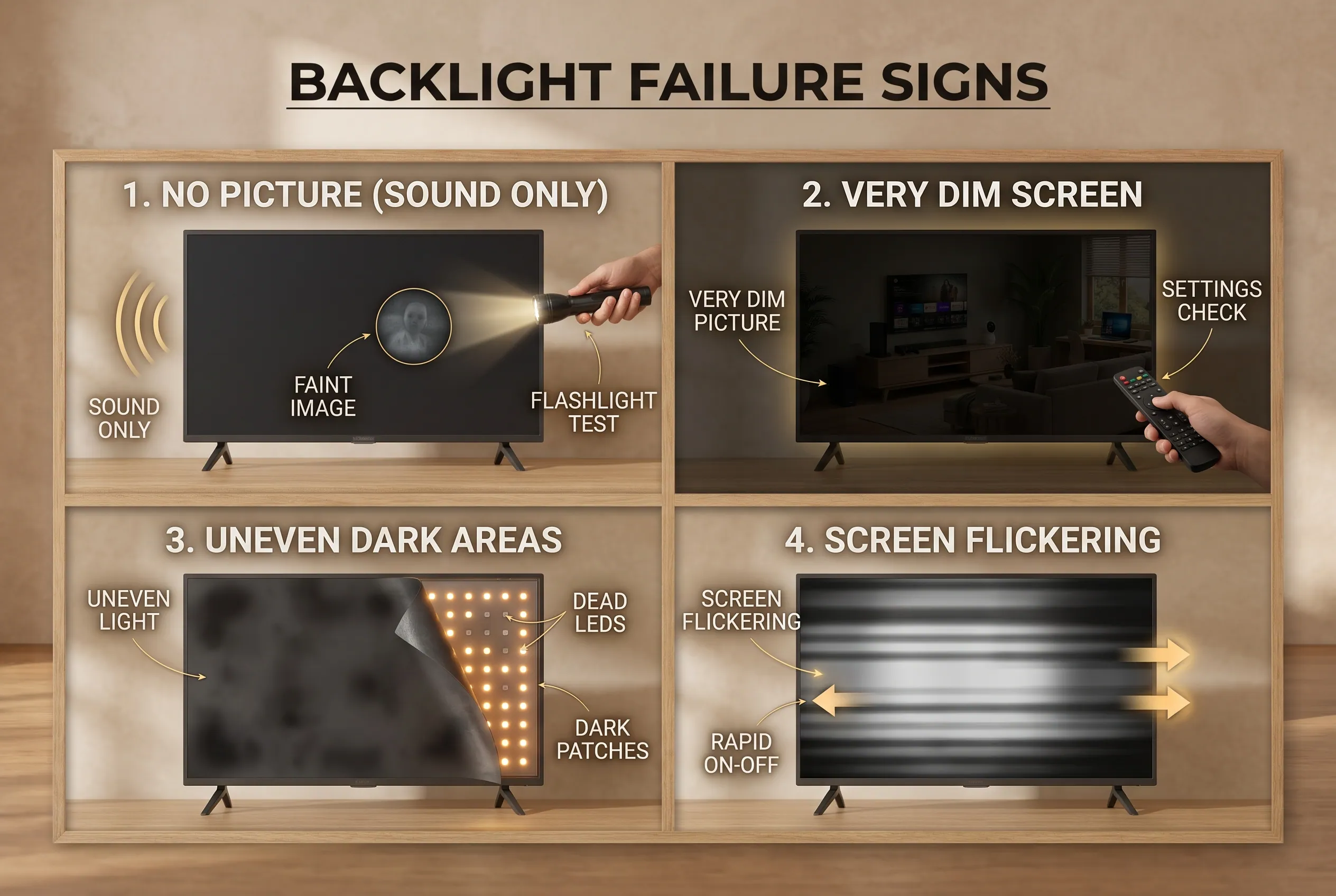
A faulty backlight can cause a screen to appear unusually dark or make the picture disappear. However, these symptoms do not always mean the backlight has failed.
1. The TV has sound but no visible picture
You may hear a program or navigate sounds while the screen appears black.
A backlight fault is one possible cause. Other problems involving the display panel, power supply, or internal electronics can produce similar symptoms.
Do not buy replacement LEDs based only on this sign.
2. The screen is very dim
The television may still show a picture, but it looks much darker than usual even after you adjust the picture settings.
Before suspecting hardware trouble, check energy-saving modes, picture presets, and other settings that can reduce light output.
If the problem persists across normal sources and settings, professional diagnosis may be appropriate.
3. Some areas look darker than others
Uneven lighting can appear as dark patches, bright corners, or cloudy areas, particularly in dark scenes.
Possible causes include the backlight system, the display panel, or the way the TV controls local dimming. Some uneven illumination can also be a design limitation rather than a sudden failure.
If the unevenness is new, severe, or getting worse, arrange a diagnosis.
4. The screen flickers or changes brightness unexpectedly
A backlight or its control system may be involved if the screen repeatedly flickers or changes light output.
However, automatic brightness features, power settings, source issues, and other hardware faults can cause similar behavior.
Check the settings and manufacturer’s troubleshooting guidance first. If the issue continues, note when it happens and share that information with a repair technician.
What Should You Check Before Repairing a TV Backlight?
Start with checks that do not require opening the television. They are often easier, cheaper, and safer than attempting an internal repair.
1. Confirm the input and connected device
Check that the TV is on the correct HDMI input or streaming source. If possible, try another known-working source or input.
This can help determine whether the problem follows one connected device or appears across the television.
If only one source has a dark picture, investigate that device and its settings before assuming the TV’s backlight is faulty.
2. Review picture and power settings
Check the Backlight or similar control, picture mode, Energy Saving options, and any automatic light adjustments.
If the problem started after someone changed the settings, returning to a known picture mode may be useful.
Do not reset the entire television as your first step. A full reset may remove custom picture settings or other preferences. If a reset becomes necessary, review the manufacturer’s instructions first.
3. Look for a faint image with a flashlight
This is a preliminary check sometimes used when a television has sound but its screen looks black.
Caution: Keep the TV powered normally and use only a flashlight on the outside of the screen. Do not open the cabinet, touch internal parts, or apply pressure to the panel.
In a dim room, shine the flashlight gently across the screen from a short distance. Look carefully for a faint image, such as a menu or moving picture.
If you can see a faint image, the TV may be producing an image without sufficient illumination. That can point toward a backlight-related fault, but it does not identify the exact failed component.
If you cannot see an image, that does not rule out every backlight problem either.
4. Review the manufacturer’s troubleshooting guide
Find the exact model number on the TV label or in its settings and search the manufacturer’s official support site.
Follow the instructions for that model rather than relying on a repair video for a different television. TVs can differ in their power systems, backlight layout, and internal construction.
If the image remains dark or the television continues to flicker, request a professional diagnosis instead of guessing which part needs replacing.
5. Avoid unnecessary internal repairs
Replacing LED strips can require removing the rear cover, handling electrical components, and carefully separating fragile layers of the display.
A mistake can damage the screen or other parts. A television may also contain electrical components that can remain hazardous even after it has been unplugged.
For a beginner, checking settings and external connections is a sensible stopping point. Leave internal diagnosis and repairs to a qualified technician.
How Much Does TV Backlight Repair Cost?
Published US repair-cost guides provide a broad planning estimate of around 100–250 for a TV backlight repair, although some repairs may cost less or more. This is not a guaranteed price for your model or location. The estimate is based on general published cost information, not an inspection of your television.
For reference, see Angi’s TV repair cost guide, HomeGuide’s TV repair cost information, and HomeAdvisor’s TV repair estimates.
The final bill may depend on several factors:
- TV size and model: Parts and labor requirements vary.
- Parts availability: Older or less common models may be harder to repair.
- Labor: The time needed to access and replace internal parts affects the charge.
- Diagnostic or service fees: A technician may charge for inspection, travel, or collection.
- Other failed components: The backlight may not be the only problem.
A repair quote should identify the diagnosed fault and explain whether the price includes parts, labor, and any additional fees.
Do not confuse the price of replacement LED strips sold online with the total cost of a professional repair. The strips are only one part of the expense, and buying them before confirming the fault can waste money.
Is It Worth Replacing a TV Backlight?
Replacing a backlight can be worthwhile, but it depends on the television and the repair estimate.
Consider these questions before deciding:
How old is the TV? A relatively recent television in good condition may be worth repairing. An older model with other problems may not justify the expense.
How much will the complete repair cost? Compare the written quote with the price of a similar replacement TV. Include diagnostic fees, transportation, and any other charges.
Could another component be faulty? A black screen does not prove that the LED strips have failed. A proper diagnosis helps prevent spending money on the wrong repair.
Is the television still covered by a warranty? Check the manufacturer’s warranty and any retailer protection plan before paying for service. Confirm the terms before arranging third-party repairs.
Does the TV still meet your needs? If it has good picture quality, suitable connectivity, and no other major faults, repairing it may make sense. If you already need better size, features, or connectivity, replacement may provide greater value.
For example, suppose a technician quotes $180 to repair a television that otherwise works well. That may be reasonable if a comparable replacement would cost considerably more. If the TV is old and a similar replacement is available at a price close to the repair quote, replacement may be the more practical choice.
This example is illustrative, not a claim about the value of any particular television.
The best decision comes after a diagnosis and a comparison of the complete costs, not simply the price of a replacement part.
Built-In TV Backlighting vs. LED Strips Behind the TV
The term “TV backlight” can also refer to decorative lighting placed behind the television. These lights serve a different purpose from the built-in backlight of an LCD screen.
Built-in backlight: This is part of an LED/LCD television’s display system. It illuminates the panel so you can see the image.
Bias lighting: This is an external light placed behind the TV, often shining onto the wall. Some viewers prefer it because it makes the viewing area less stark when the room is dark.
Reactive LED lighting: These external strips can change color to follow screen content. Depending on the system, they may use a camera, HDMI device, or another method to match the displayed colors.
External lighting is optional. Some viewers enjoy the effect, while others prefer a dark room or a steady, neutral light.
It also cannot repair a failed built-in backlight. If the TV itself has a dim or black screen, decorative LED strips will not solve the underlying display problem.
Frequently Asked Questions
Should the TV backlight be on or off?
An LCD/LED TV needs its built-in backlight to make the picture visible. If your TV has a Backlight setting, adjust the light output to suit your room instead of assuming it should always be at maximum. Automatic backlight or local dimming features are separate controls, and their behavior depends on the model.
What is the difference between backlight and brightness on a TV?
Backlight usually controls the overall light output of an LCD/LED screen. Brightness commonly adjusts the black level, while Contrast affects brighter picture levels. These controls serve different purposes, but their exact names and behavior can vary by manufacturer.
How do I know if my TV backlight is bad?
Possible signs include sound with no visible picture, a very dim screen, persistent flickering, or uneven illumination. Check the picture settings and inputs first. A faint image seen with a flashlight can be a clue, but only proper diagnosis can identify the failed component.
How much does it cost to replace a TV backlight?
Published US estimates commonly place the repair around 100–250, but the actual price depends on the TV model, parts, labor, and service fees. Get a diagnosis and written quote before deciding whether to repair the television or buy a replacement.
Choose the Right Next Step for Your TV
If your picture looks too bright or too dim, start with the Backlight, Brightness, and Energy Saving settings. Make one change at a time and compare the result in your usual room lighting.
If the screen remains dark, flickers, or shows uneven illumination after basic checks, do not assume that a particular part has failed. Use your manufacturer’s troubleshooting guidance and request a diagnosis when necessary.
Understanding what your TV backlight does can help you make better picture adjustments, avoid unnecessary part purchases, and decide whether repair is worth the cost
Disclaimer
TV models, room lighting, repair costs, and symptoms vary, so the advice may not apply equally to every television. Follow the manufacturer’s instructions for model-specific settings, and consult a qualified technician for internal TV repairs or electrical components.