Wireless network solutions for home help you connect phones, laptops, smart TVs, security cameras, and other devices without running a separate internet cable to each one. The right setup depends on your home’s size, layout, internet plan, and the places where you need a reliable signal.
For many small homes and apartments, a good Wi-Fi router is enough. Larger homes or buildings with thick walls may benefit from a mesh Wi-Fi system or additional wireless access points. Before spending money on new equipment, check whether poor router placement, an outdated device, or a problem with your internet service is causing the issue.
This guide explains the main types of home wireless networks, how to choose the right equipment, how to improve coverage, and what to consider when comparing products and prices.
Direct Answer
Wireless network solutions for home use routers, mesh Wi-Fi, or access points to connect devices. The right setup depends on your home’s layout, internet plan, connected devices, and coverage needs.
Experience
Before buying a mesh system or extender, test Wi-Fi near your router and in the room with weak coverage. If performance is poor everywhere, check your internet service and existing equipment first; adding a node will not fix every cause of slow internet.
What Are Wireless Network Solutions for Home?
A wireless network solution is a combination of equipment and settings that lets your devices communicate over a wireless connection. In most homes, this means a Wi-Fi network that connects your devices to the internet and allows them to communicate with certain local devices.
For example, imagine you want to stream a movie in your living room, print a document from your laptop, and check a smart camera from your phone. A properly configured home network can support these activities without requiring a direct network cable to every device.
A typical home wireless network includes:
- An internet connection from a service provider.
- A modem or other connection equipment, depending on the service.
- A Wi-Fi router that manages network traffic and provides wireless access.
- Phones, computers, televisions, and other connected devices.
- Additional equipment, such as mesh units or access points, when more coverage is needed.
Some internet providers supply a single box that combines a modem and router. Fiber internet services may use an optical network terminal instead of a traditional modem.
The important distinction is that Wi-Fi and internet access are not the same thing. A router can create a local wireless network, but you normally need an outside internet connection to visit websites or stream online content.
Microsoft’s wireless network setup guide explains the basic equipment and placement considerations for connecting devices at home.
What Equipment Makes Up a Home Wireless Network?
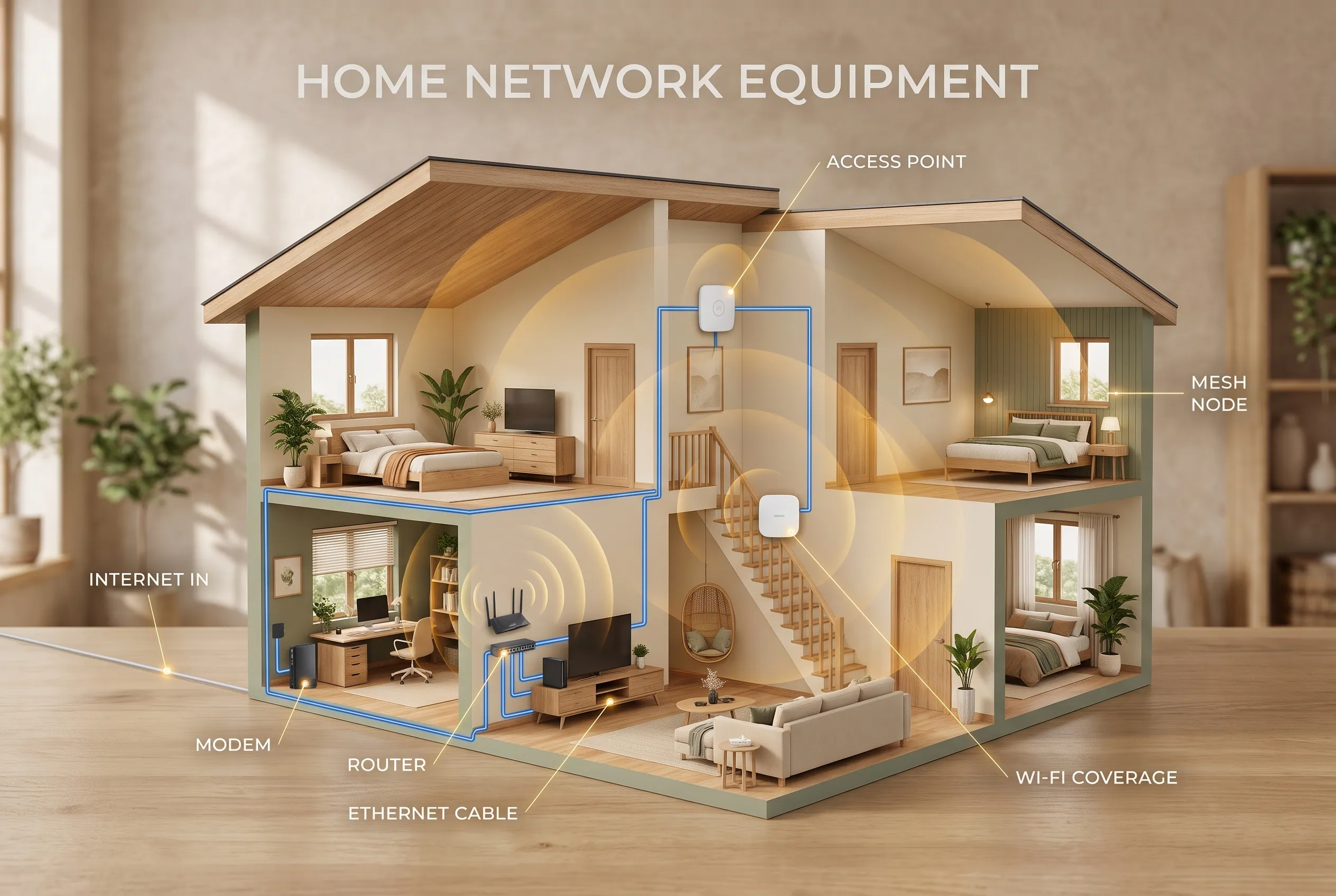
Understanding the main devices makes it easier to choose a useful solution without buying equipment you do not need.
Modem, router, and internet connection
These devices and services perform different jobs.
Internet connection: Your internet service provider (ISP) delivers access through a connection such as cable, fiber, or another supported service.
Modem or fiber terminal: This equipment connects your home network to the provider’s service. The exact device depends on the connection type.
Router: The router directs network traffic between your devices and the internet. A wireless router also broadcasts Wi-Fi.
Ethernet cable: This cable connects equipment directly. It is useful for connecting a router to a modem, linking access points, or providing a stable connection to a desktop computer.
Before replacing your router, check whether your provider supplied a combined modem-router unit. You may already own equipment that can handle your needs.
Mesh Wi-Fi, access points, and extenders
Additional equipment can improve coverage, but each option works differently.
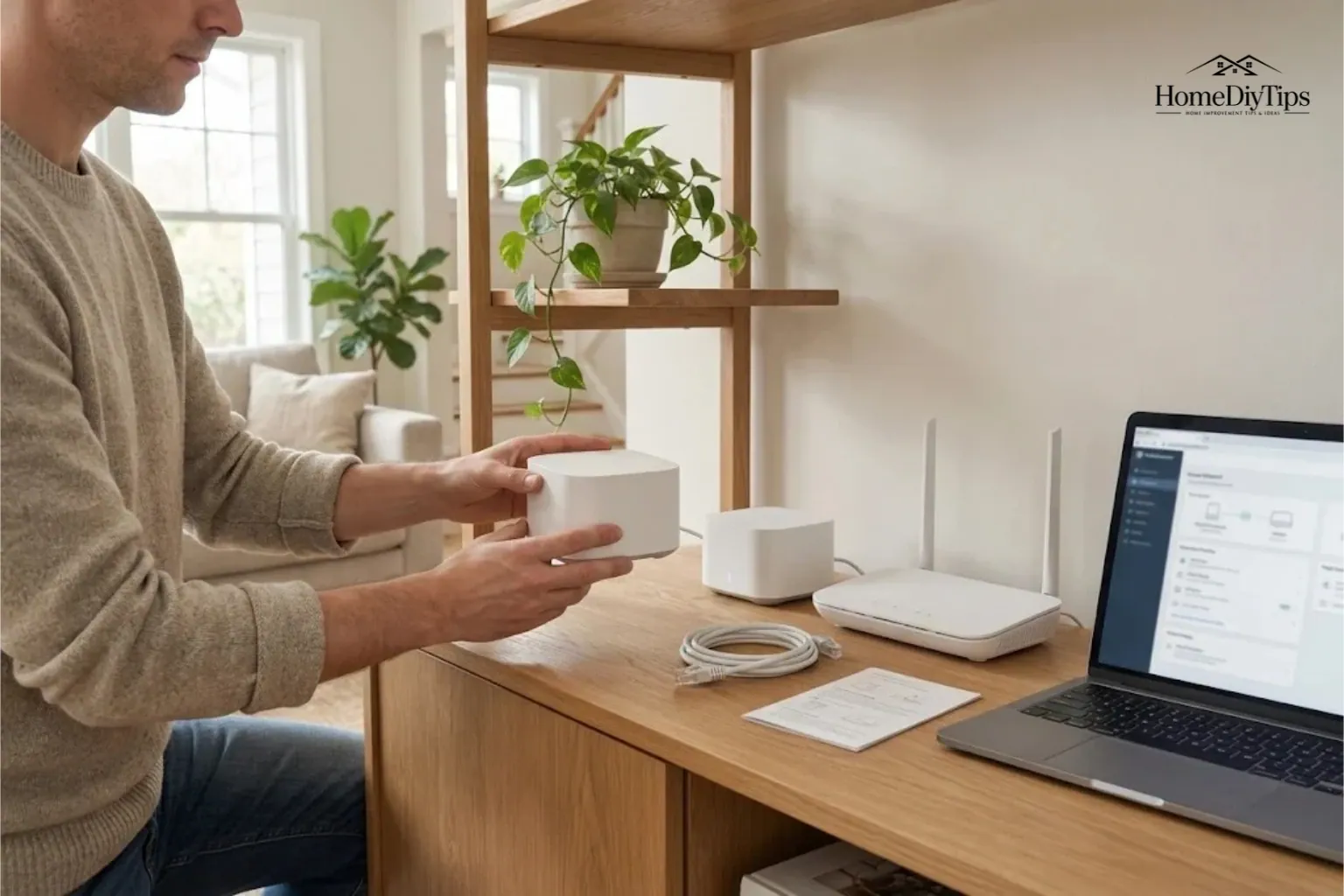
Mesh Wi-Fi system: A mesh system uses a main unit and one or more additional units, often called nodes or points, to extend wireless coverage. Compatible units work together to provide a coordinated network.
Wireless access point: An access point provides Wi-Fi access to an existing network. Many access points connect to the main network using Ethernet.
Wi-Fi extender: An extender receives an existing wireless signal and rebroadcasts it. It can help in a weak-signal area, but its location and connection quality affect performance.
Network switch: A switch adds more Ethernet connections to a wired network. It does not provide Wi-Fi by itself unless used with suitable wireless equipment.
How these devices work together
Consider a two-story home where the router is in a downstairs office. The connection works well near the router, but the upstairs bedroom receives a weak signal.
You could first move the router to a more open, central location. If that does not solve the problem, a properly placed mesh node or wired access point may help.
The best choice depends on what is available in the home. An existing Ethernet cable can make a wired access point attractive. If running cable through walls is difficult, mesh Wi-Fi may offer an easier alternative.
Router vs. Mesh Wi-Fi vs. Access Point: Which Is Right for Your Home?
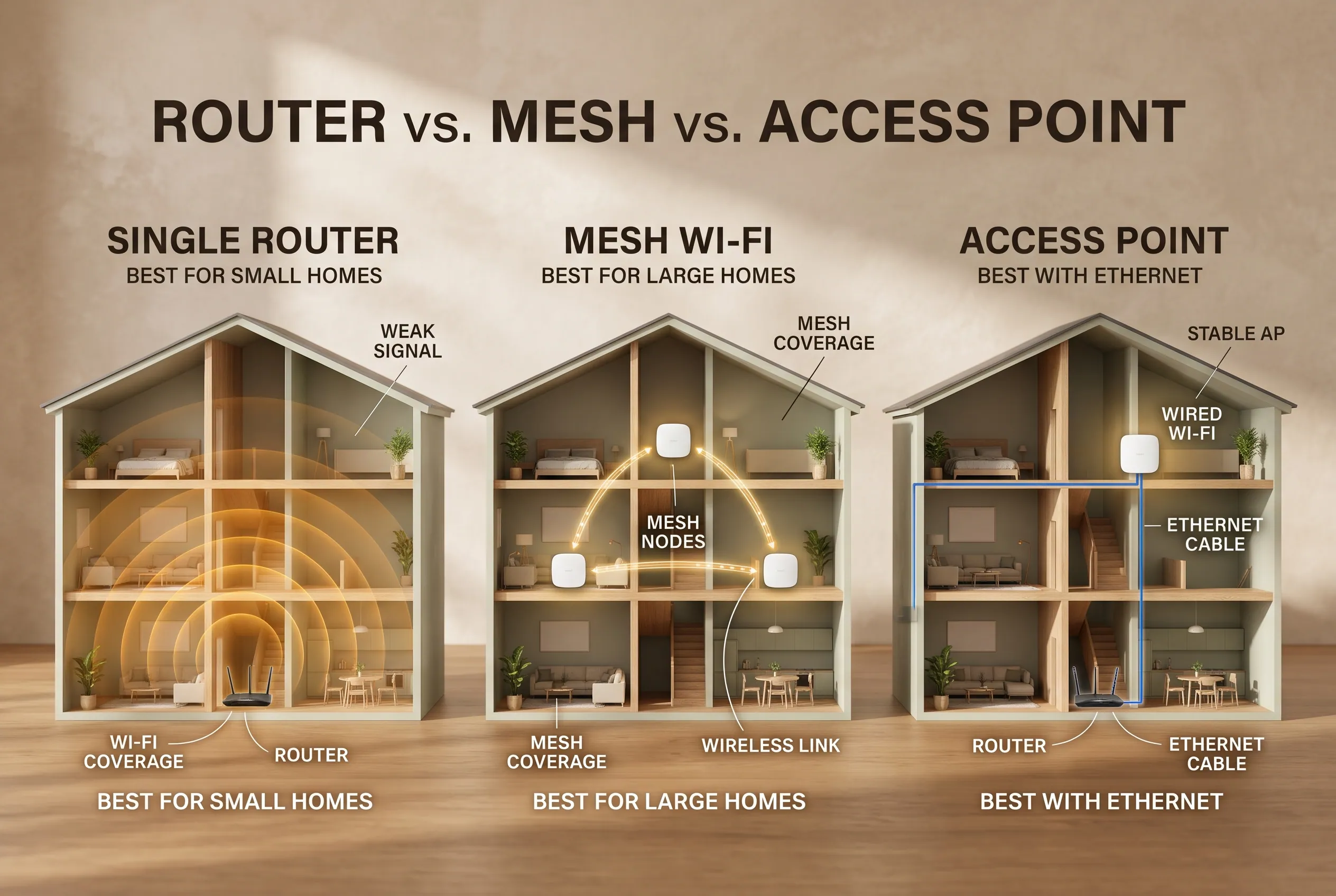
There is no single wireless network setup that works best for every property. Compare the options according to coverage, installation effort, equipment cost, and the condition of your existing network.
| Solution | Best suited for | Main benefit | Main limitation |
| Single Wi-Fi router | Small homes and apartments | Simple setup with relatively low equipment cost | Coverage may be weak in distant rooms |
| Mesh Wi-Fi | Larger homes or layouts with several weak-signal areas | Extends coverage through coordinated wireless units | Costs more than a basic router and requires good node placement |
| Wired access point | Homes with suitable Ethernet cabling | Adds Wi-Fi where a cable connection is available | May require additional cabling and configuration |
| Wi-Fi extender | A limited coverage problem where a suitable signal is available | Can be a relatively simple way to extend coverage | The extended connection can be affected by the original signal and the extender’s design |
When a single router is enough
A single router is a sensible starting point if your home is relatively small, your devices are close to the router, and you do not experience regular connection problems.
Look for a model that supports the devices you own, has suitable Ethernet ports, offers current security features, and can handle the speed of your internet plan.
You do not necessarily need a high-end gaming router to browse websites, make video calls, and stream movies. Paying for advanced features you will not use may offer little practical value.
When mesh Wi-Fi makes sense
Mesh Wi-Fi is worth considering when one router cannot provide reliable coverage throughout the home.
It can be useful in a multi-story house, a home with a long floor plan, or a building where walls and other obstacles weaken the signal.
However, buying more nodes does not automatically solve a coverage problem. Each node needs a suitable connection to the rest of the network. Putting a node in the room where the signal is already extremely weak may simply extend a weak connection.
Google’s Wi-Fi placement guidance recommends placing mesh points where they can maintain a strong connection with the main unit or another point. Exact placement depends on the system and your home’s construction.
When to consider an access point or extender
Choose an access point when you can connect it to your existing network through Ethernet and want to provide Wi-Fi in another part of the house.
A wired connection can avoid the need for a wireless unit to receive and retransmit data over the same wireless link. It may be especially useful for home offices, detached work areas, and rooms where consistent connectivity matters.
An extender may be enough when you need to improve coverage in one nearby area and do not want to install cabling. Check the product’s compatibility and connection requirements before buying it.
If your current equipment works well, do not replace it simply because a newer product has a higher advertised speed.
How to Choose a Wireless Network Setup for Your Home
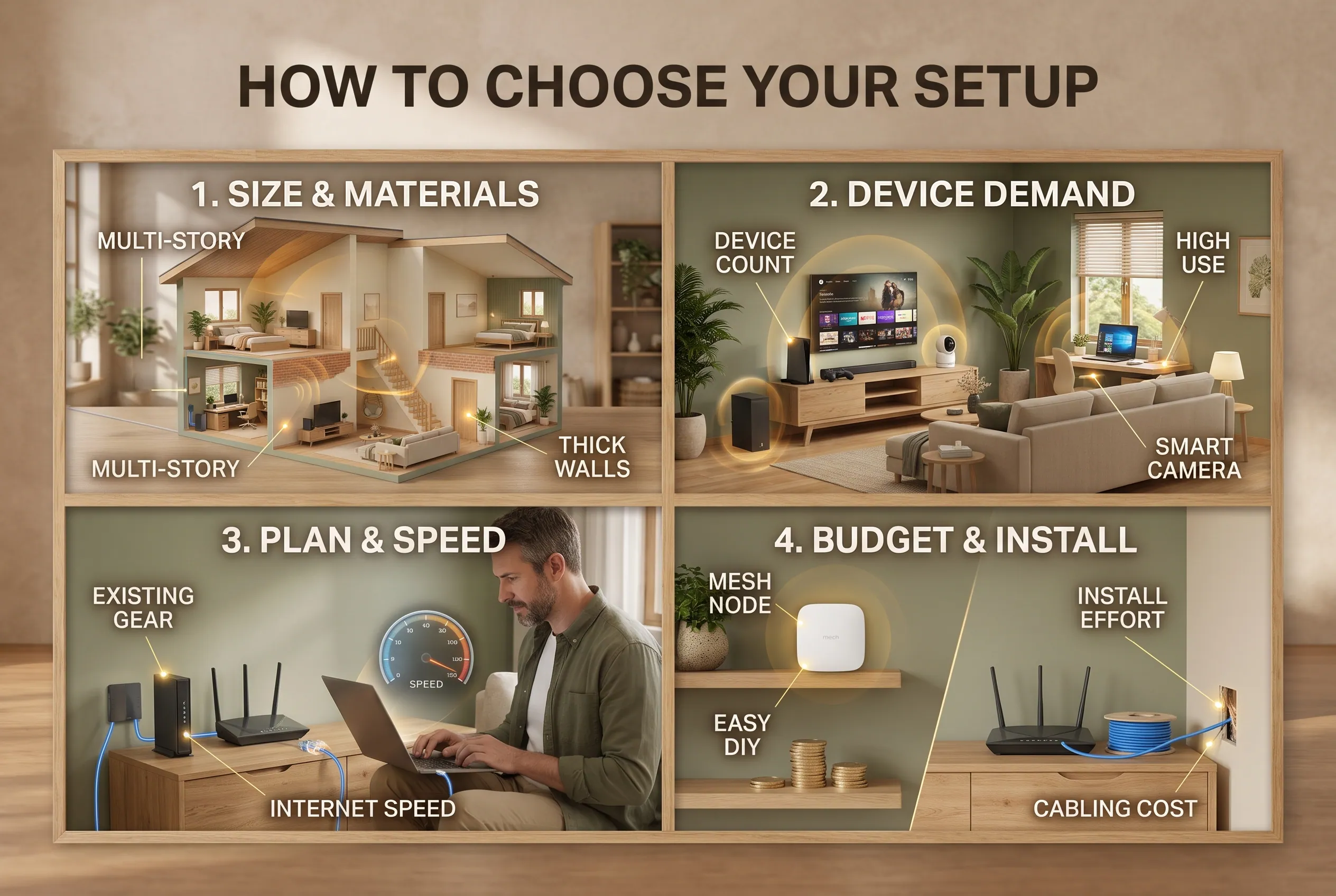
Once you understand the main options, use a few practical checks to narrow your choices.
1. Consider home size, floors, and wall materials
The home’s floor plan matters as much as its square footage.
A compact apartment with an open layout may receive good coverage from one router. A similar-sized apartment with thick walls or several separated rooms may need a different approach.
Multistory homes can be more challenging because floors, ceilings, and other construction materials affect signal strength. Metal surfaces, large appliances, and the location of the router can also influence performance.
Start by identifying the places where you need reliable Wi-Fi. These might include bedrooms, a home office, the kitchen, or a patio.
Do not rely only on a manufacturer’s advertised coverage area. Actual performance depends on the building, interference, equipment placement, and connected devices.
2. Count connected devices and identify their uses
Your household’s internet habits help determine what equipment makes sense.
For example:
- A few phones and laptops used mainly for browsing may need only a basic, reliable setup.
- Several televisions streaming video, along with video calls and gaming, place greater demands on the network.
- Smart cameras, thermostats, speakers, and other connected devices may need stable connections in different rooms.
- A home office may benefit from a direct Ethernet connection for a work computer or other important equipment.
Do not count devices alone. Think about what they do and whether they operate at the same time.
A router that supports many connected devices is not automatically capable of delivering excellent performance to all of them under every condition. Its processing capacity, wireless design, internet speed, and network environment also matter.
3. Check your internet plan and existing equipment
Buying a new router will not fix every slow internet connection.
Suppose your plan provides a certain maximum download speed, but a website loads slowly only in one bedroom. This may point to a Wi-Fi coverage problem.
If the connection is slow even when you are near the router, the cause may involve the internet service, the connected device, router settings, or another network issue.
Test the connection in more than one location. When possible, compare Wi-Fi performance near the router with a test using Ethernet on a suitable computer.
Also check whether your current equipment supports the speeds you pay for and whether your devices can use the newer Wi-Fi features you are considering.
4. Match the setup to your budget
Set a budget based on the problem you need to solve.
For example, someone with a small apartment and good existing coverage may not need to spend money at all. Someone with several persistent dead zones may reasonably consider mesh Wi-Fi or additional access points.
Include the full cost, not just the price shown on the product page. You may need extra Ethernet cables, additional nodes, mounting equipment, or installation help.
For renters, a freestanding mesh system or extender may be easier to set up than permanent cabling. Check your lease and obtain permission before making changes to walls or other parts of the property.
Do Wi-Fi 6, Wi-Fi 6E, and Wi-Fi 7 Matter?
Wireless standards affect the features, compatibility, and potential performance of networking equipment. However, choosing the newest standard is not always the most useful upgrade.
Wi-Fi 6, Wi-Fi 6E, and Wi-Fi 7 refer to different generations or extensions of Wi-Fi technology. A router and the devices connecting to it must support the relevant features to use them.
A new router can still connect to older compatible devices, but those devices will not necessarily gain all the benefits of the latest standard.
Understanding 2.4 GHz, 5 GHz, and 6 GHz
Wi-Fi equipment may use three main frequency bands, depending on its standard, model, and regional configuration.
| Band | Typical advantage | Typical limitation |
| 2.4 GHz | Often reaches farther and travels through obstacles better | Can be crowded and may provide lower speeds |
| 5 GHz | Often offers higher speeds in suitable conditions | Usually has less range through obstacles than 2.4 GHz |
| 6 GHz | Provides additional wireless spectrum for supported devices, including Wi-Fi 6E and Wi-Fi 7 equipment | Requires compatible equipment and can be less suitable for reaching distant rooms through obstacles |
The best band depends on the distance, building layout, nearby networks, and the devices being used. Some smart-home products support only certain bands, so check compatibility before buying a router.
Compatibility, speed, and when an upgrade is worth it
Wi-Fi 6 may be a sensible choice for many households that want a modern router without paying extra for features they may not use. Wi-Fi 6E and Wi-Fi 7 can offer advantages in compatible environments, but their value depends on the devices, available bands, local conditions, and intended use.
Before upgrading, ask three questions:
- Does the new equipment solve a problem with my current network?
- Can my devices use the features I am paying for?
- Will the new router or system work with my internet service and existing equipment?
Advertised wireless speeds are not promises of the speed you will receive in every room. The actual result depends on several parts of the connection, not just the router’s label.
How to Improve Wi-Fi Coverage Before Buying New Equipment
You can often learn a lot about a coverage problem by making a few simple changes first.
Step 1: Check the router’s location
Place the router in a relatively central, open position when practical. Keep it off the floor and away from large metal objects or obstacles that block the signal.
Avoid hiding it inside a closed cabinet or placing it behind furniture if that arrangement weakens coverage.
You may not be able to move the router far from the incoming internet connection. Even moving it to a nearby shelf or a more open part of the room may help.
Step 2: Test the rooms where you need Wi-Fi
Use the same phone or laptop to check the connection near the router and in the rooms with problems.
Test the activities you actually care about, such as a video call, a website, or streaming a video. You can also use a speed-test service, but remember that its result reflects the conditions at that time.
Write down where the connection is weak and whether the problem occurs consistently.
Step 3: Check for interference and connection problems
Other wireless networks and electronic devices can affect performance. A router’s available settings may let you select a less crowded channel, although automatic channel selection is sufficient for many households.
Restarting the router can sometimes clear a temporary problem. If you do this, follow the manufacturer’s instructions and allow the device time to reconnect.
Avoid a factory reset as your first troubleshooting step. It can erase network settings and require you to set up your connection again.
Step 4: Add equipment only if needed
If moving the router and checking the existing network do not solve the problem, consider additional equipment.
A mesh system may help spread Wi-Fi across several rooms. A wired access point may be preferable if you already have Ethernet cabling. An extender may work for a limited area if it receives a suitable signal.
After installation, repeat the same tests in the same locations. If the results do not improve, check the new unit’s connection and placement before buying more equipment.
How to Secure Your Home Wireless Network
Good coverage is important, but a home network also needs sensible security settings.
Your network may connect phones, computers, cameras, smart speakers, televisions, and household appliances. Protecting the network helps reduce the risk of unauthorized access.
The Federal Trade Commission’s home Wi-Fi security guide provides practical advice for protecting a wireless network.
Set strong passwords and use supported encryption
Choose a strong, unique Wi-Fi password that is difficult to guess. Change the router’s administrator password as well. This password controls access to the router’s settings and should not simply be the same as the Wi-Fi password.
Use WPA3 Personal when your router and devices support it. WPA2 Personal is a reasonable alternative for compatible equipment that does not support WPA3. Avoid obsolete security options such as WEP.
If the router offers only outdated security methods, check for a software update and consider replacing the device if it still cannot provide a supported, secure option.
Update router software and set up guest access
Router software, often called firmware, controls how the device operates. Updates may fix security issues and improve reliability.
Check the manufacturer’s instructions for updates and enable automatic updates when supported and appropriate.
A guest network can let visitors connect without sharing your main Wi-Fi password. It can also help separate visitors’ devices from personal devices, although the degree of separation depends on the router’s design and settings.
Identify an unknown device on your Wi-Fi
An unfamiliar entry in your router’s device list does not automatically mean someone has hacked your network. Phones and other devices may display generic names, and some devices use private or randomized network addresses.
Use this process before taking action:
- Open your router’s app or administrator page and review the connected-device list.
- Compare unfamiliar entries with the phones, computers, televisions, cameras, and smart-home devices in your home.
- Temporarily disconnect a known device and see whether its entry changes or disappears.
- Check the device manufacturer’s support information if you still cannot identify an entry.
- If a device remains suspicious, change your Wi-Fi password and reconnect your trusted devices.
Changing your Wi-Fi password will disconnect devices that use the old password, so make sure you can reconnect important equipment.
Do not remove or block a device simply because its name looks unfamiliar. Confirm what you can first.
What Do Wireless Network Solutions Cost?
Home wireless networking costs vary with the equipment, package size, required features, and installation work.
As a US retail snapshot, Best Buy’s mesh Wi-Fi listings checked during research on October 29, 2026, showed examples ranging from around $140 for a single eero 6+ unit to approximately $160 for a three-pack of TP-Link Deco 7 Wi-Fi 7 mesh equipment. Some more advanced three-unit systems listed for several hundred dollars, while premium systems approached or exceeded $1,000.
These are examples from retailer listings, not recommended minimum budgets or guaranteed prices. Discounts, stock, and product packages change, so check the exact model and current price before purchasing.
Think about the total expense in these categories:
- Single router: May be the least expensive solution if your home already has good coverage.
- Mesh package: Usually costs more than a basic router, but may be worthwhile when multiple rooms need better coverage.
- Access point or extender: May solve a specific coverage problem without requiring a full network replacement.
- Installation and cabling: Can add cost if you need an electrician or network installer to run cable, mount equipment, or configure a more complex setup.
Before hiring a professional, describe the problem and ask what the quote includes. Confirm whether it covers equipment, cable, labor, configuration, and testing.
Do not pay for an extensive installation before checking whether simpler changes will solve the problem.
Are Cisco Wireless Products a Good Choice for Home Use?
Cisco is a major networking equipment provider, but the right choice depends on the product and how you intend to use it.
Cisco’s official wireless access point range focuses on workplace and organizational networks. Its product range includes advanced access points and options for centralized or cloud-based management.
Such products may suit a technically advanced home network, a home-based business, or a property with more demanding networking needs. They may also require additional planning, compatible equipment, configuration, or management services, depending on the model.
For a typical household that wants straightforward Wi-Fi, a consumer router or mesh system may be easier to install and manage.
If you are comparing Cisco Wi-Fi router models or access points, check the exact model’s intended use, support status, power requirements, management needs, and price. Do not assume that a business access point works like a basic plug-and-play home router.
The goal is not to buy the most advanced equipment. It is to choose equipment that meets your needs without adding unnecessary expense or complexity.
Frequently Asked Questions About Wireless Network Solutions
What is a wireless network solution?
A wireless network solution is equipment and software that lets devices connect over Wi-Fi. A home setup may use a single router, or it may include mesh units or additional access points to provide better coverage.
How do I identify an unknown device on my Wi-Fi?
Check your router’s connected-device list and compare unfamiliar entries with the devices in your home. Disconnect a known device temporarily to help identify its entry. If you still cannot identify a suspicious device, change your Wi-Fi password and reconnect trusted devices.
Is there a way to get Wi-Fi without an internet provider?
You can create a local Wi-Fi network without an internet provider, but that does not automatically give you access to the public internet. To go online, you generally need an internet connection through a service such as fixed broadband, mobile data, fixed wireless, or satellite internet.
Are WLAN and Wi-Fi the same?
Not exactly. WLAN stands for wireless local area network, the broader term for a local network that connects devices wirelessly. Wi-Fi commonly refers to wireless networking based on the IEEE 802.11 family of standards.
Choose the Setup That Solves Your Actual Wi-Fi Problem
Start with your existing network before buying new equipment. Check router placement, identify the rooms where coverage is weak, and confirm whether the problem is Wi-Fi or your internet connection.
A single router may be enough for a smaller home. A mesh system can help in a larger property, while a wired access point is worth considering when Ethernet is available.
Choose equipment that supports your devices, fits your budget, and offers suitable security features. Then test the connection where you actually use it. A network that works reliably throughout your home is more useful than one that simply has the newest technology or the highest advertised speed.
Disclaimer
Wireless network performance, equipment costs, and coverage vary with home layout, building materials, internet service, and connected devices. Check product compatibility and manufacturer instructions before making changes, and seek qualified help for complex network installations or cabling work when needed.